
TOC - Web App User Guide
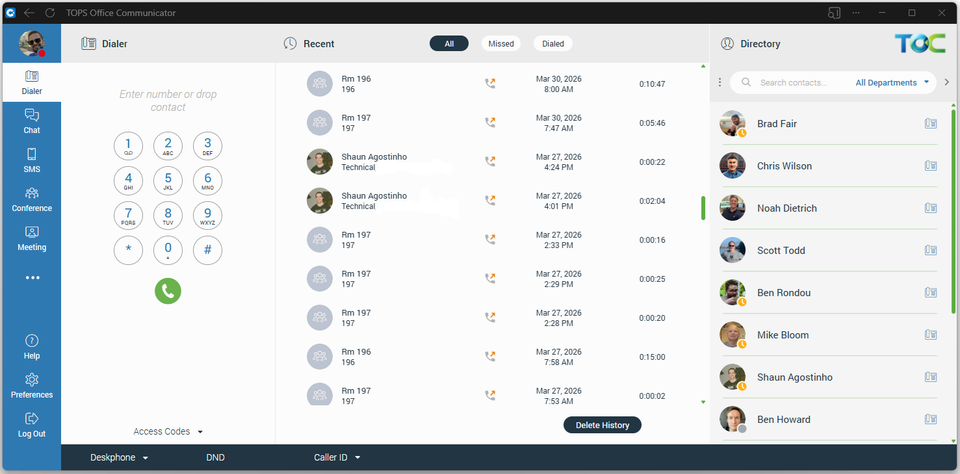
The TOPS Office Communicator web app allows you to access almost all features of the desktop app from any web browser, with no software installation required. Make and receive phone calls, send and receive chat and SMS messages, set up audio conferences and video meetings, and manage your voicemails.
Where To Go
You can access the web app here:
toc.tops.tel/webapp
How to Log In
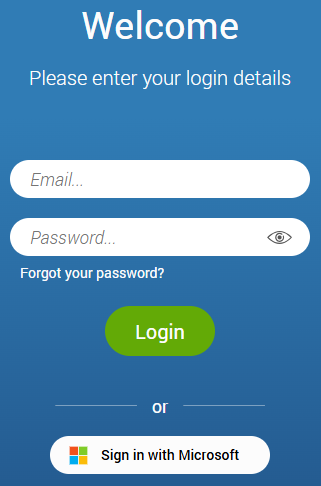
There are two ways to log in. The primary method is through Microsoft Single Sign-on (SSO). At the login screen, click on Sign in with Microsoft and enter your business email address and Microsoft password if prompted.
If your TOPS Office Communicator welcome email instructed you to sign in with a password, enter your email address and password in the respective fields.
Install the Web App to your Desktop
Google Chrome
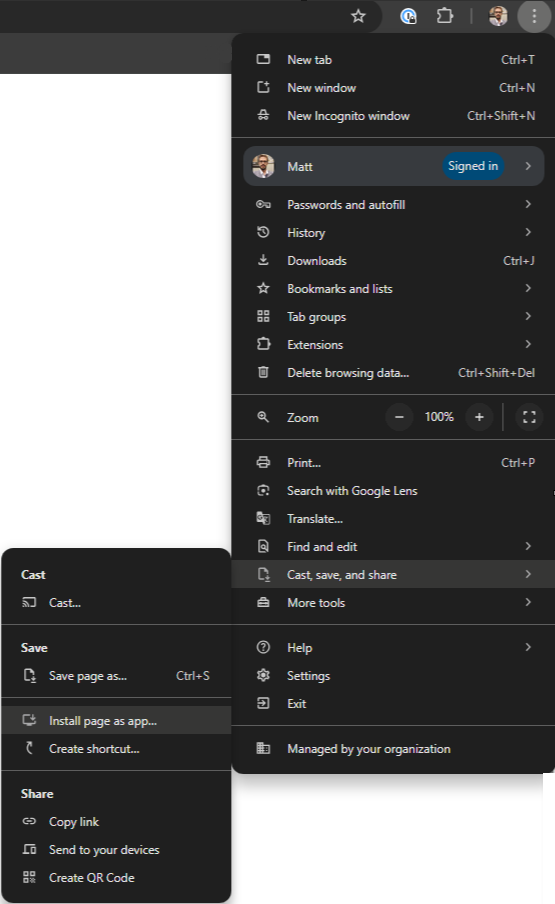
Once you are logged in, click on the vertical ellipsis on the top right corner of the window, go to Cast, save, and share and select Install page as app...
Microsoft Edge
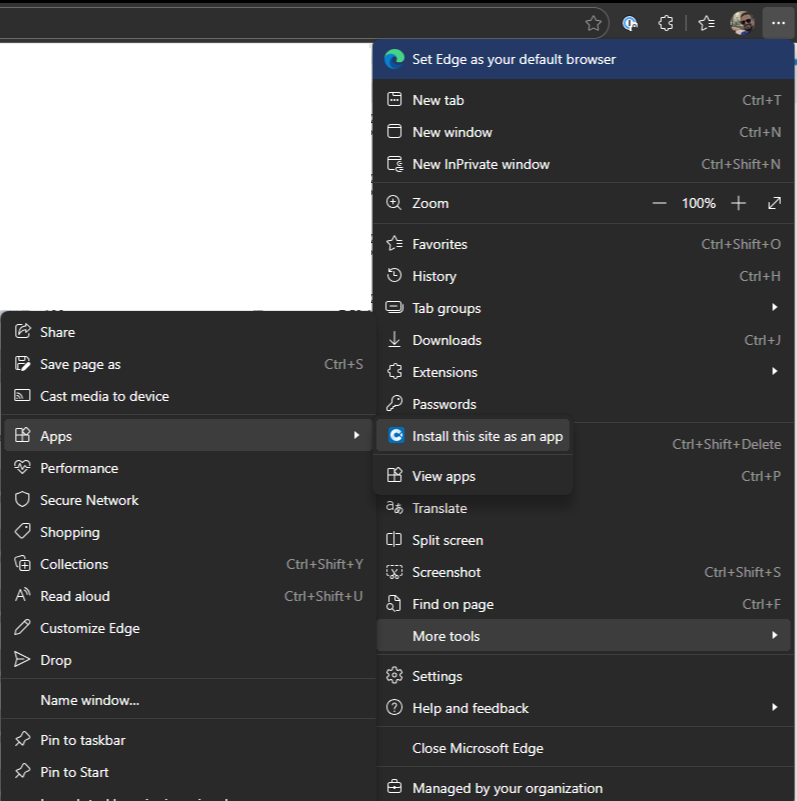
Once you are logged in, click on the ellipsis at the top right, go to More tools, Apps, and select Install this site as an app.
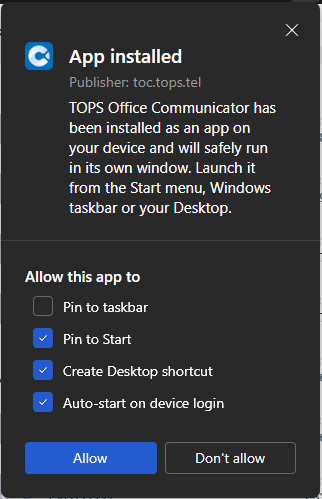
Press Install on the popup, and when a new window opens, select Pin to Start, Create Desktop shortcut and Auto-start on device login.
TOC Web App Interface Overview
Work-in-progress
Device Selection
Work-in-progress
Make a Call
Transfer a Call
Drag-and-drop Transfer
Hold
Park
Switch Device During a Call
Add People to an Existing Call
Start a New Conference Call
Voicemail
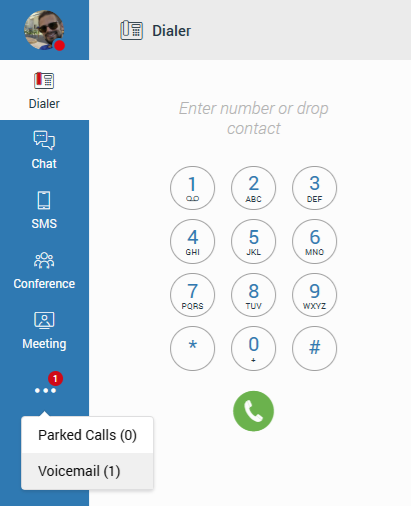
To view your messages, click on the ellipsis below Meeting, and select Voicemail.
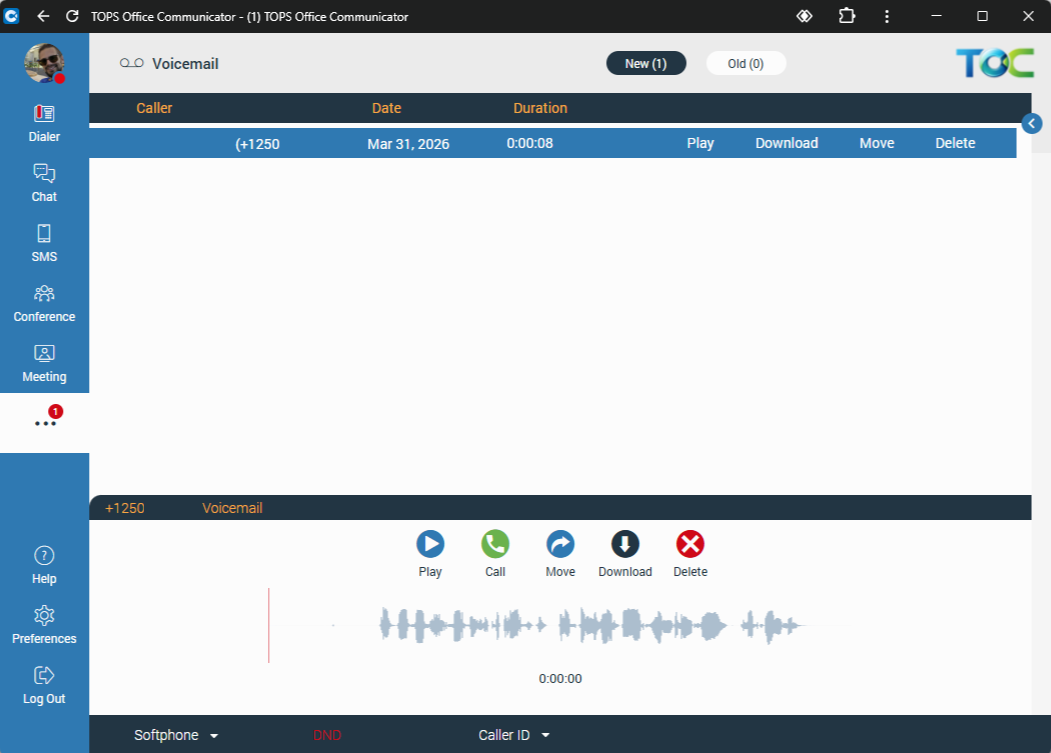
Click on a message to show the Play, Call, Move, Download, and Delete buttons.
Access your Mailbox
To access your mailbox from TOC web app, follow these steps:
- Click on the Phone icon and press Access Codes > Voicemail, or dial *86.
- Enter your PIN - found in your TOC welcome email.
To access your mailbox from your desktop phone:
- Press the Voicemail touch key.
- Enter your PIN.
To access your mailbox from another desktop phone:
- Dial *84 + your extension number.
- Enter your PIN.
Record Your Name for the Directory
- Access your mailbox by following the steps above.
- At the main menu, press 0 for mailbox options.
- Press 3 to record your name.
- At the tone, say only your first and last name - press # when finished.
- Press 1 to accept, 2 to review, or 3 to re-record.
Record Your Personal Greetings
- Access your mailbox by following the steps above.
- At the main menu, press 0 for mailbox options.
- Press 1 to record your Unavailable message.
- When you are finished recording, press #.
- Press 1 to accept, 2 to review, or 3 to re-record.
Example greeting:
This is __________. I'm not available to take your call right now. If you require immediate assistance, please press 0, otherwise, leave a detailed message and I will return your call.
Change Your PIN
- Access your mailbox by following the steps above.
- At the main menu, press 0 for mailbox options.
- Press 5 to change your password.
- Enter your new PIN, followed by # key.
- Enter it again for confirmation, followed by # key.
Listen to Your Voicemail Greeting
Listen to your current voicemail greeting by calling your mailbox directly:
- Dial *85 + your extension number.
Company Greetings
Work-in-progress
Chat
SMS Messaging
Unified Presence
Show your availability to all TOC desktop and mobile users in your company by setting your presence. You can set your presence from any TOC app, and you can sync it with your Outlook or Microsoft Teams calendar. Custom rules can reroute your calls based on your presence status.
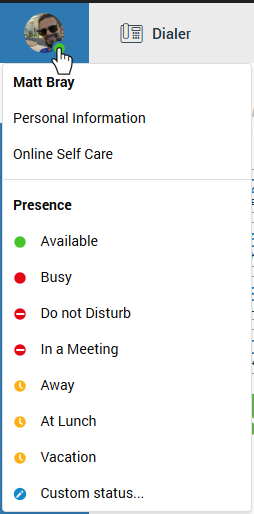
- Click on the circular icon beside your picture to access the presence menu.
- Select any presence status or click on Custom status...
- In the popup window, select how long you would like your presence to appear before switching back to Available.
Default Presence Status Behaviour
Busy / Do not Disturb / In a Meeting - You receive all phone calls, chat messages, and other notifications - functionally the same as being Available.
Away / Vacation / At Lunch - Chat notifications on your cellphone are muted. Other notifications still come through.
Phone DND - Enable DND (bottom of screen) to send all phone calls directly to your voicemail.
Custom Rules
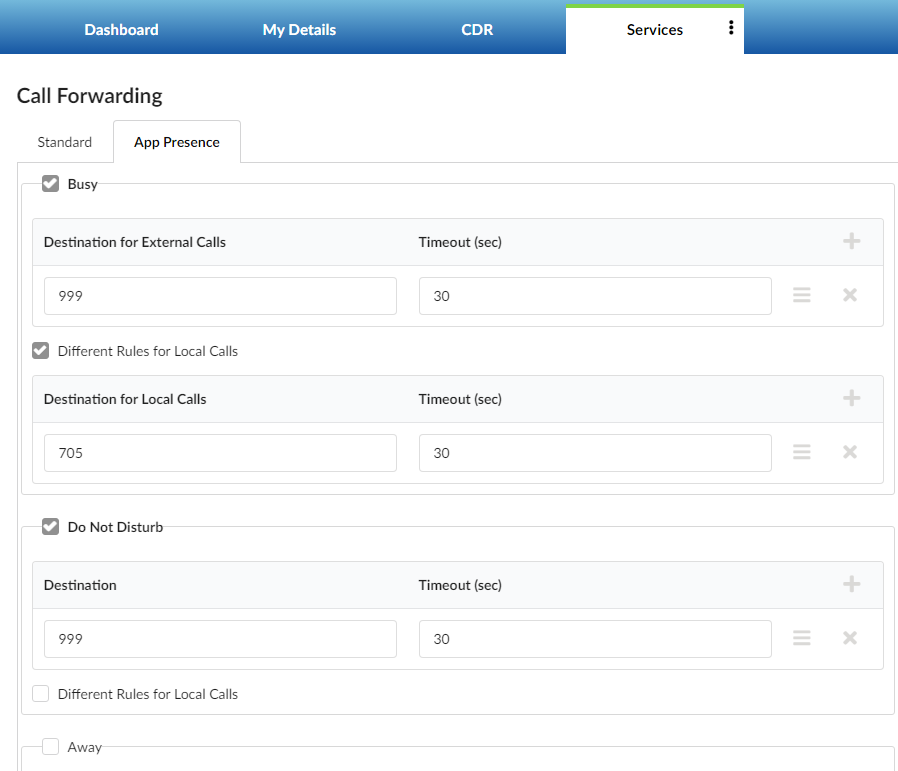
You can create custom rules in the 'Online Self Care' configuration portal, or TOPS support can create them for you.
- Open the Online Self Care portal from the menu in your TOC app.
- Click on Services.
- Click on the edit icon beside Call Forwarding.
- Click on the App Presence tab.
- Check off each presence that will apply a custom call routing rule.
- Click on the + button beside each Destination / Timeout line to add a new destination.
- (Optional) enable Different Rules for Local Calls.
Common destinations:
- 999 - send the call direct to your voicemail
- <Your Extension Number> - ring your extension
Calendar Integration
Outlook calendar integration is not available with the TOC web app. For this feature, please install the desktop app.