
TOC - Mobile User Guide
Introduction
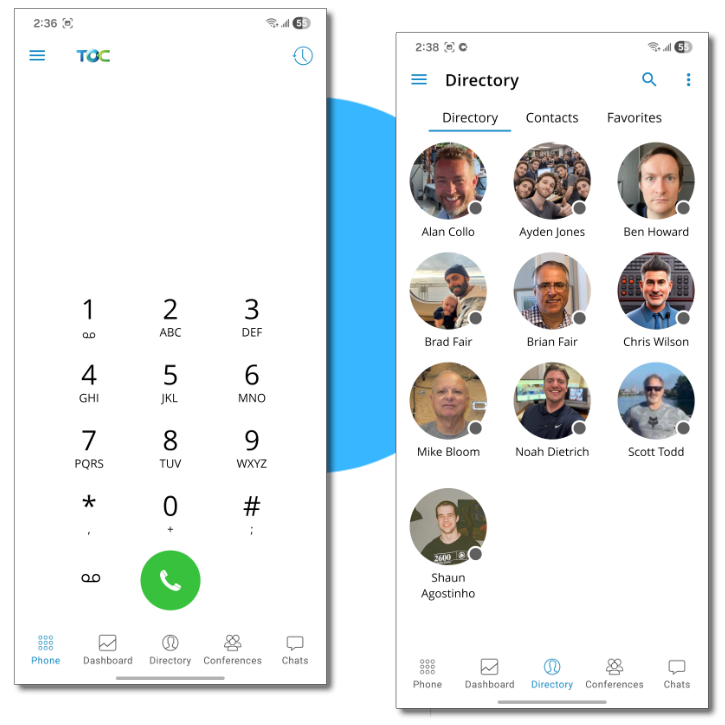
The TOPS Office Communicator mobile app (Communicator GO) enables users to make and receive phone calls through their company phone number, send and receive chat and SMS messages, and manage their voicemail from virtually anywhere.
Where to Download
How to Log In
There are three ways to log into the TOPS Office Communicator mobile app:
Microsoft Single Sign-on (SSO)
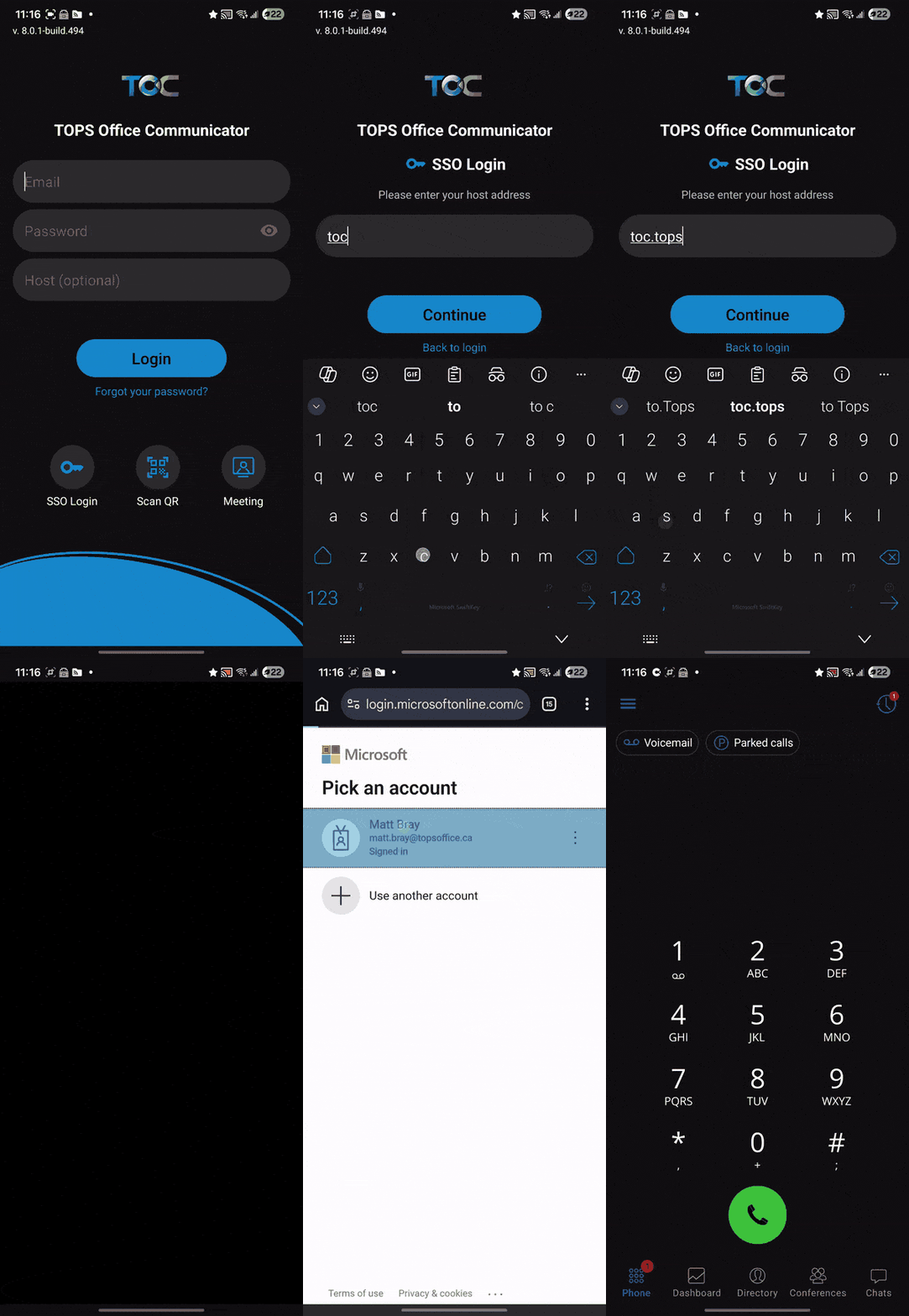
- At the login screen, click on SSO Login.
- When prompted for the host address, enter:
toc.tops.tel
- Under SSO Login options, select Sign in with Microsoft.
- Enter your office email and Microsoft password if prompted.
Scan a QR Code
You can generate a QR code with your login credentials through the TOC desktop app:
- Open the desktop app and click on the vertical ellipsis on the navigation bar, and then select Show Login QR Code.
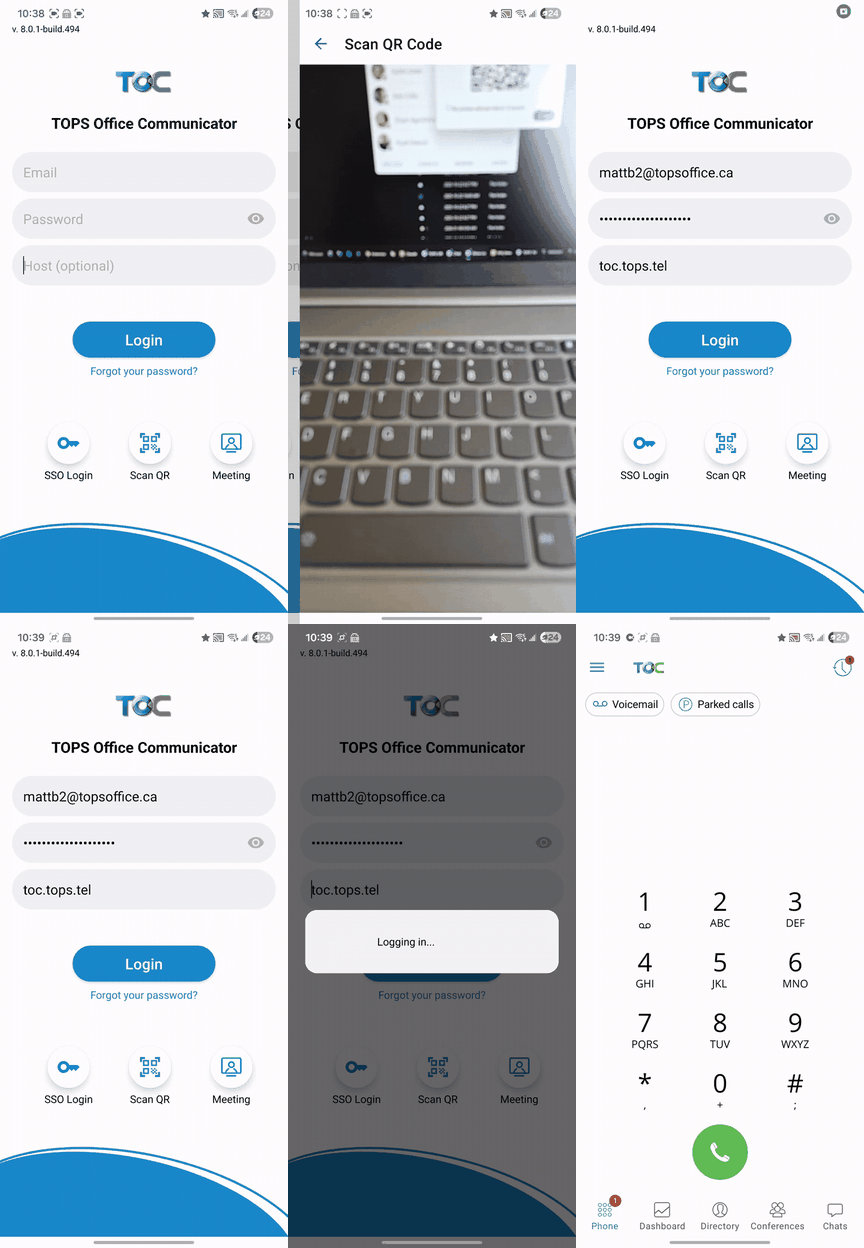
- Open the mobile app and press Scan QR on the login screen.
Enter Credentials Manually
If your TOPS Office Communicator welcome email instructed you to sign in with a password, enter your email address, password and the host address in the respective fields.
Dark Theme
You can change the appearance of the app between light and dark:
- Click on the horizontal lines in the top left corner
- Click on settings
- Click on Theme
- Select Light or Dark
Callback Mode
Inadequate WiFi or cellular data signal can cause phone calls to sound staticky, robotic, or they can drop entirely. If you are in an area with poor signal coverage and you experience this issue, you can often resolve it by using Callback mode:
Set up Callback
- Click on the horizontal lines in the top left corner of the app
- Click on settings
- Go to My phone numbers
- Press the + sign at the bottom and input your cellphone number
Enable Callback
- Click on the Dashboard icon in the navigation bar
- Click anywhere inside the Callback square to bring up the callback menu
- In the Callback menu, check off your cellphone number and enable Force Callback
How it works
- You initiate an outbound call to any destination within the app.
- The system calls your cellphone number and you must answer it to complete the call.
Call Control
Placing a call
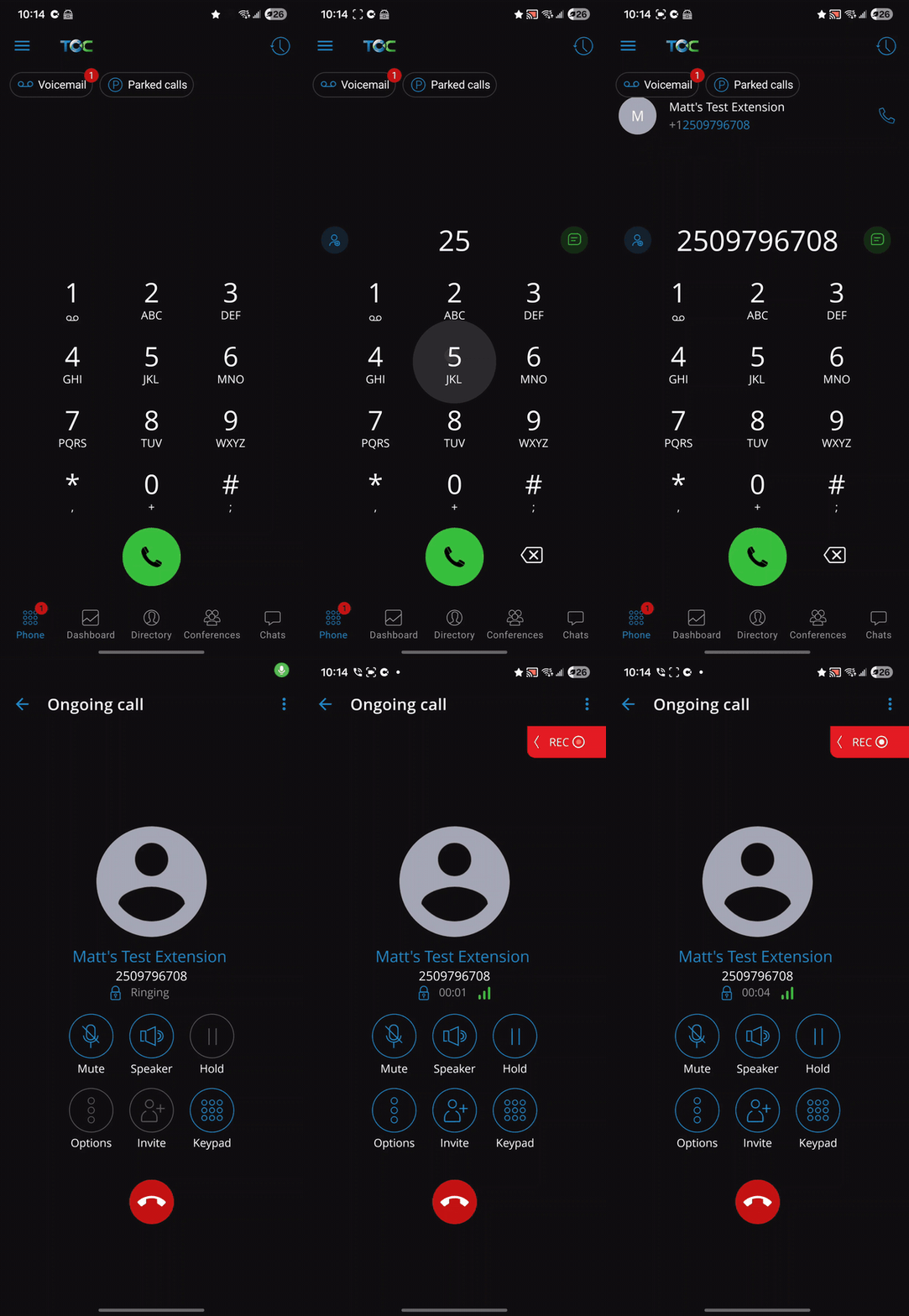
- Press the Phone icon
- Enter a phone or extension number
- Press the green Send button
Ending a call
- Press the red End Call button
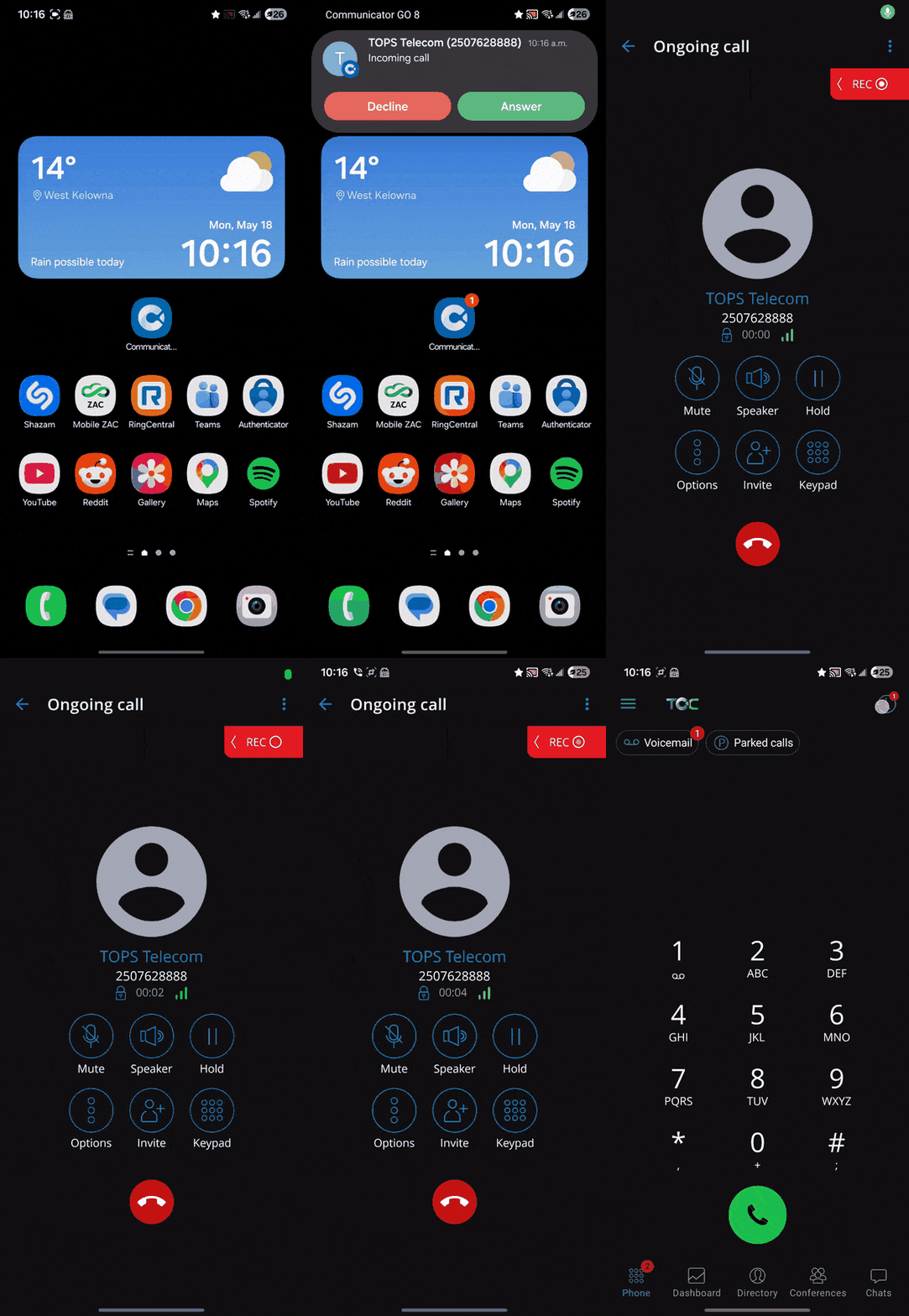
Answering a call
- Press the Answer button
Switching Devices
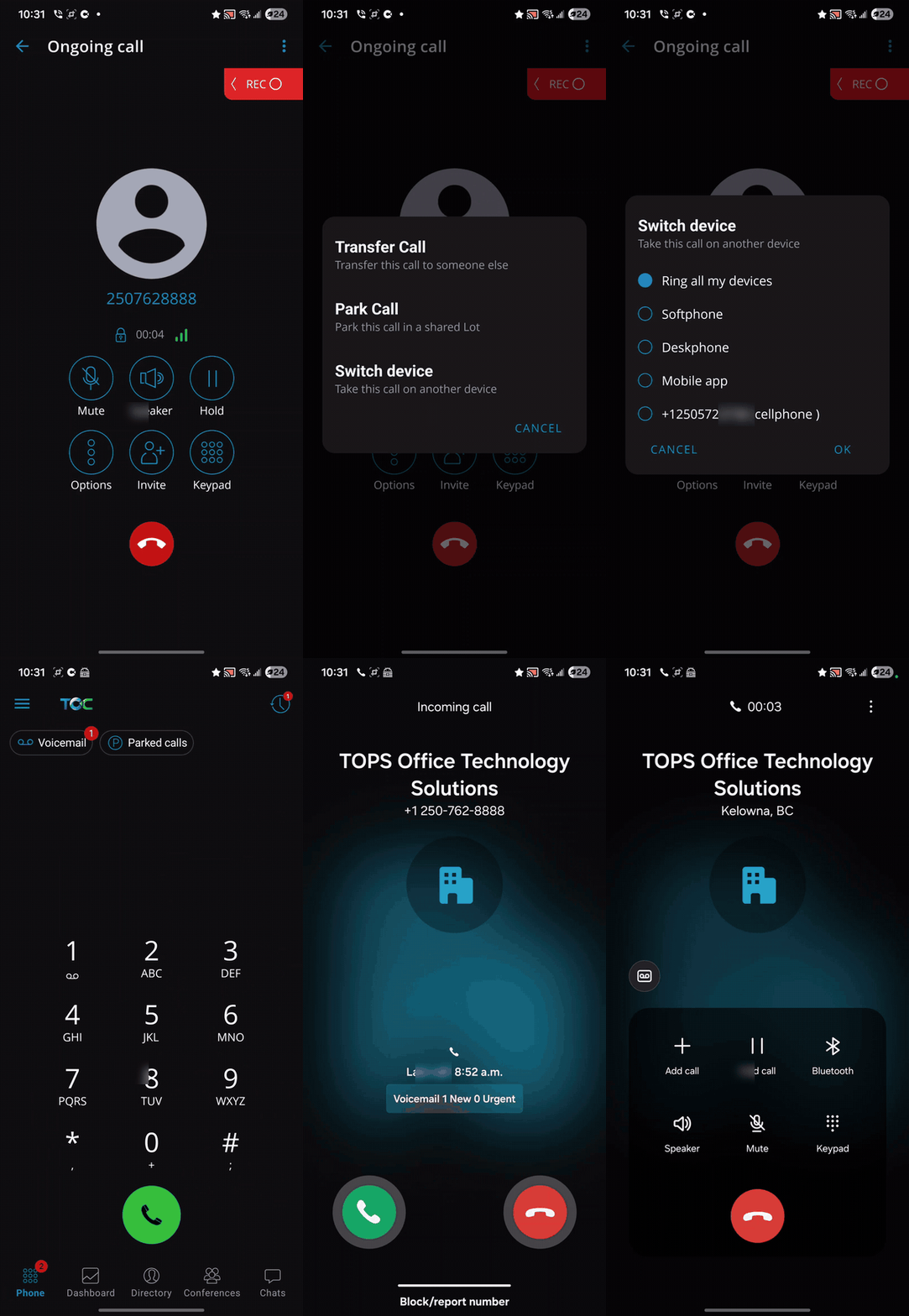
You can move an active call between any of your devices:
- While on an active call, press Options
- Press Switch device
- Select the device you would like to move the call to
Hold
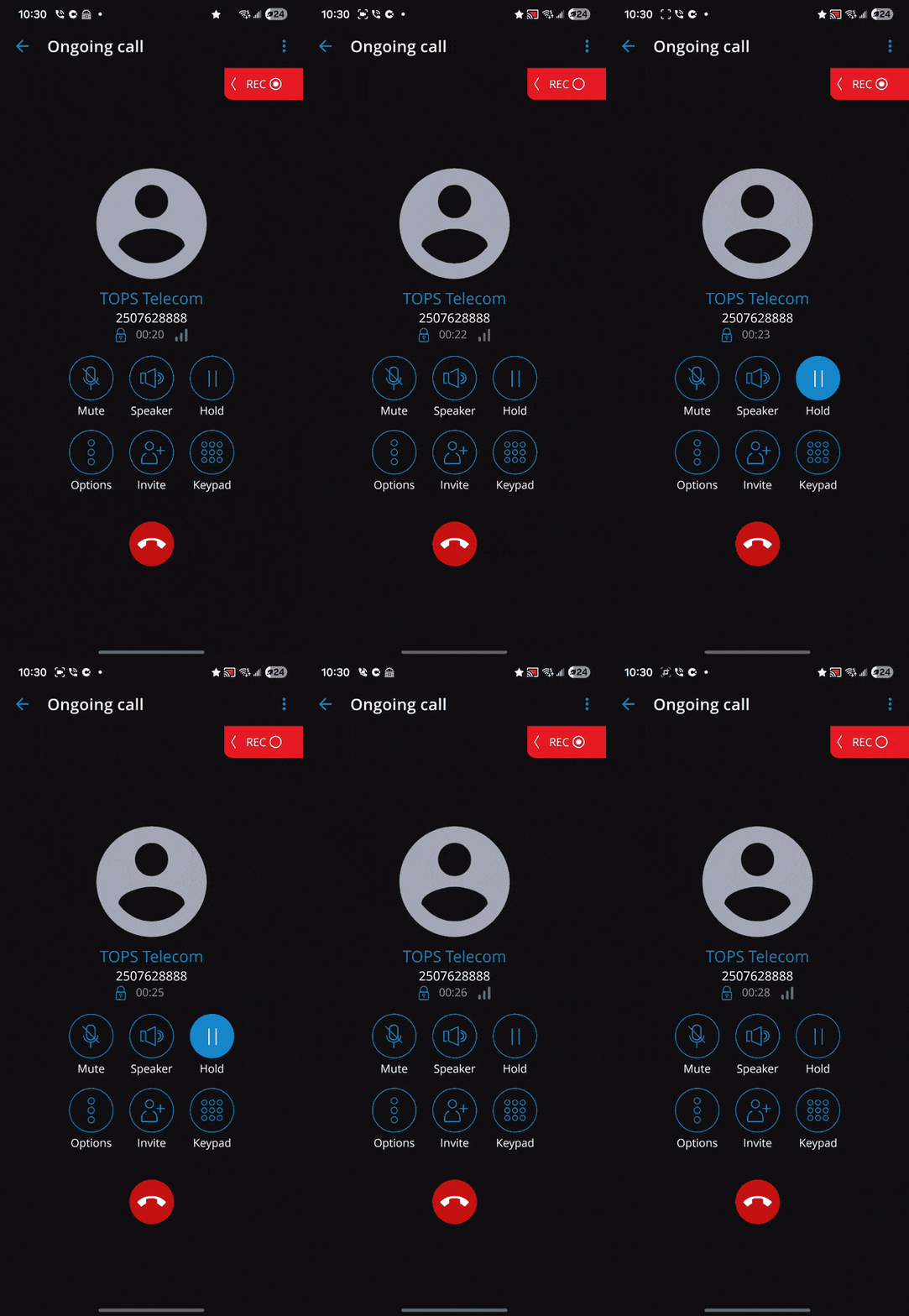
To put a caller on hold, press the Hold button.
To retrieve the call, press the Hold button again.
The call is on hold on your phone only. If you would like to put a call on hold for someone else to pick up, see Park below.
Park / Retrieve
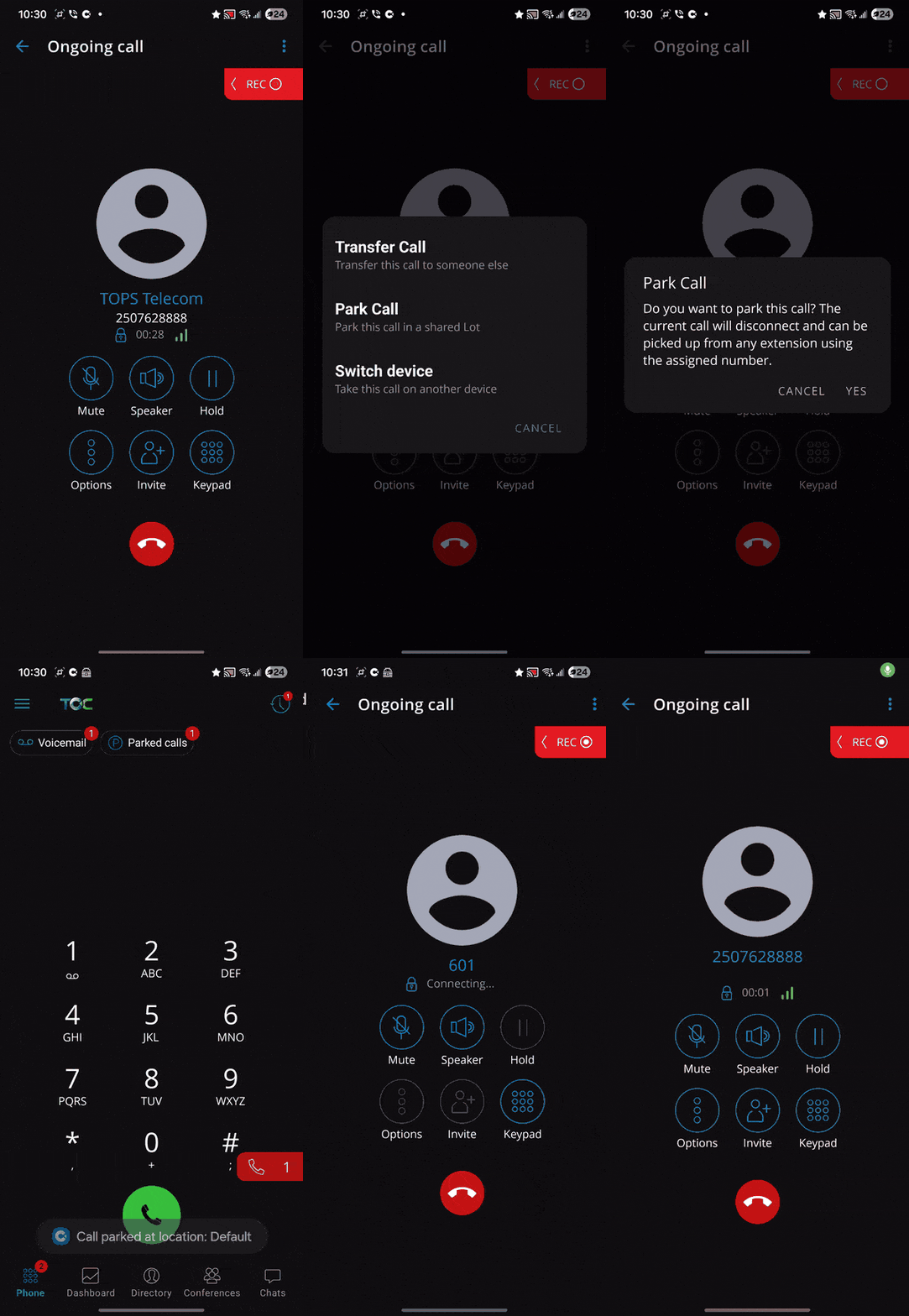
Put a call on hold and allow other users to pick it up
- While on an active call, press Options
- Press Park Call, and then press yes to confirm
- Call or message another user and ask them to pick up the parked call
To retrieve a parked call:
- Click on the Phone icon in the navigation bar
- Click on Parked Calls
- Click the retrieve icon beside the desired parked call
- Press Take Call to confirm
Blind Transfer
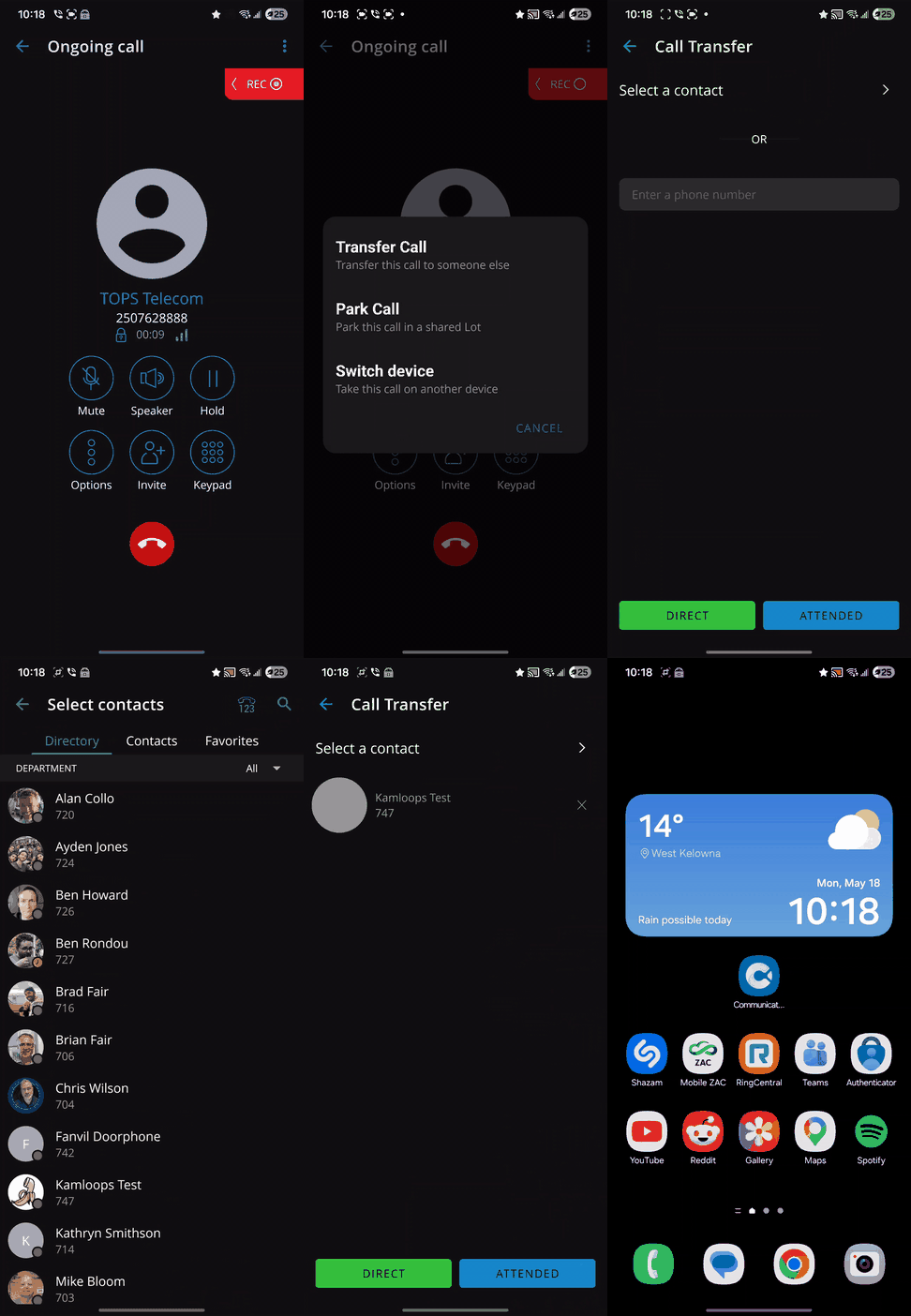
Send a call directly to another person without speaking to them first:
- While on an active call, press Options
- Press Transfer Call
- Choose a contact or enter a phone number
- Press Direct to complete transfer
The call is transferred immediately and you are disconnected.
Attended Transfer
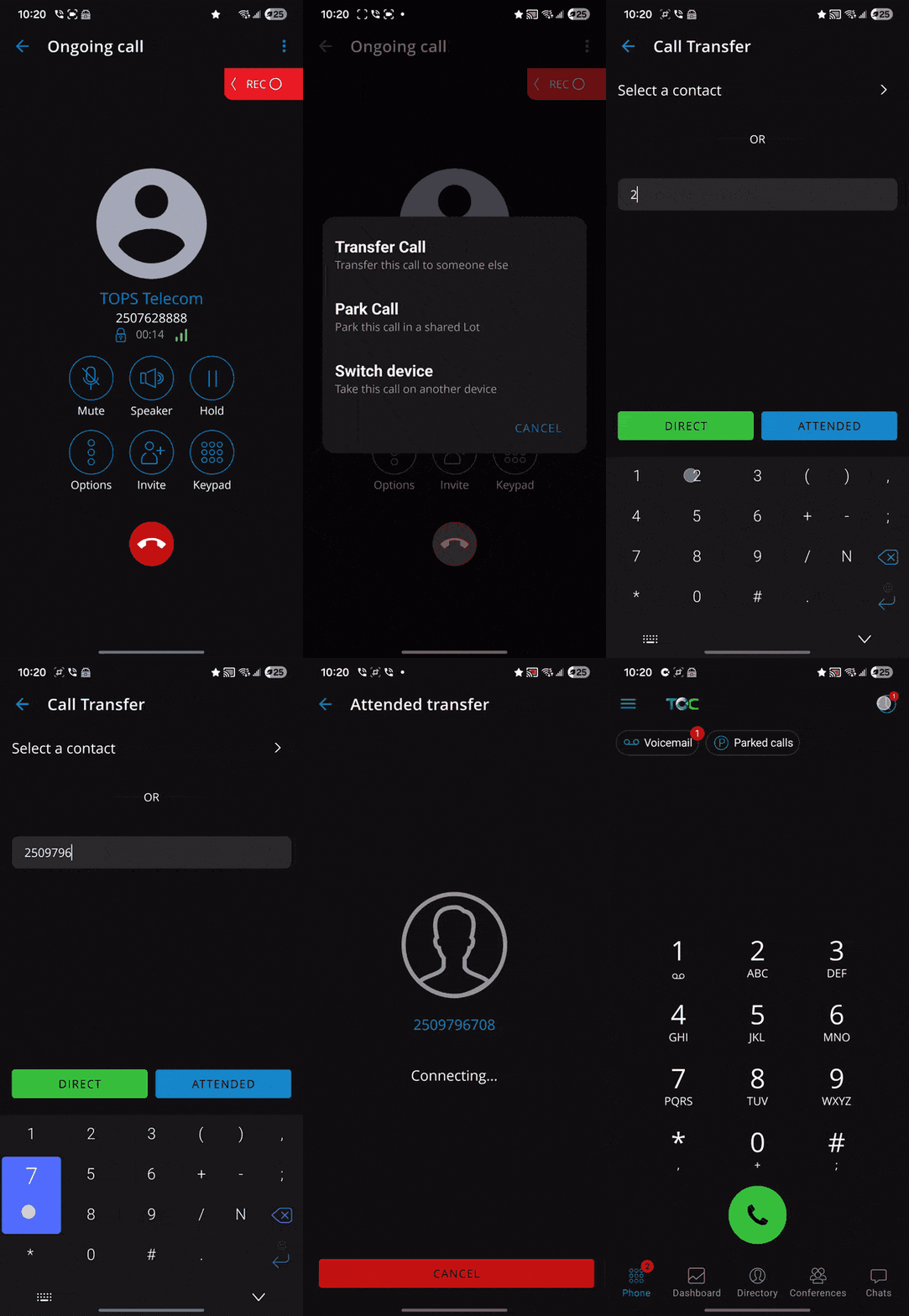
Speak with the destination before completing the transfer:
- While on an active call, press Options
- Press Transfer Call
- Choose a contact or enter a phone number
- Then press Attended to call the transfer destination - the original caller is placed on hold
- After speaking with the destination, press Complete to connect the two calls
Ad-hoc Conference
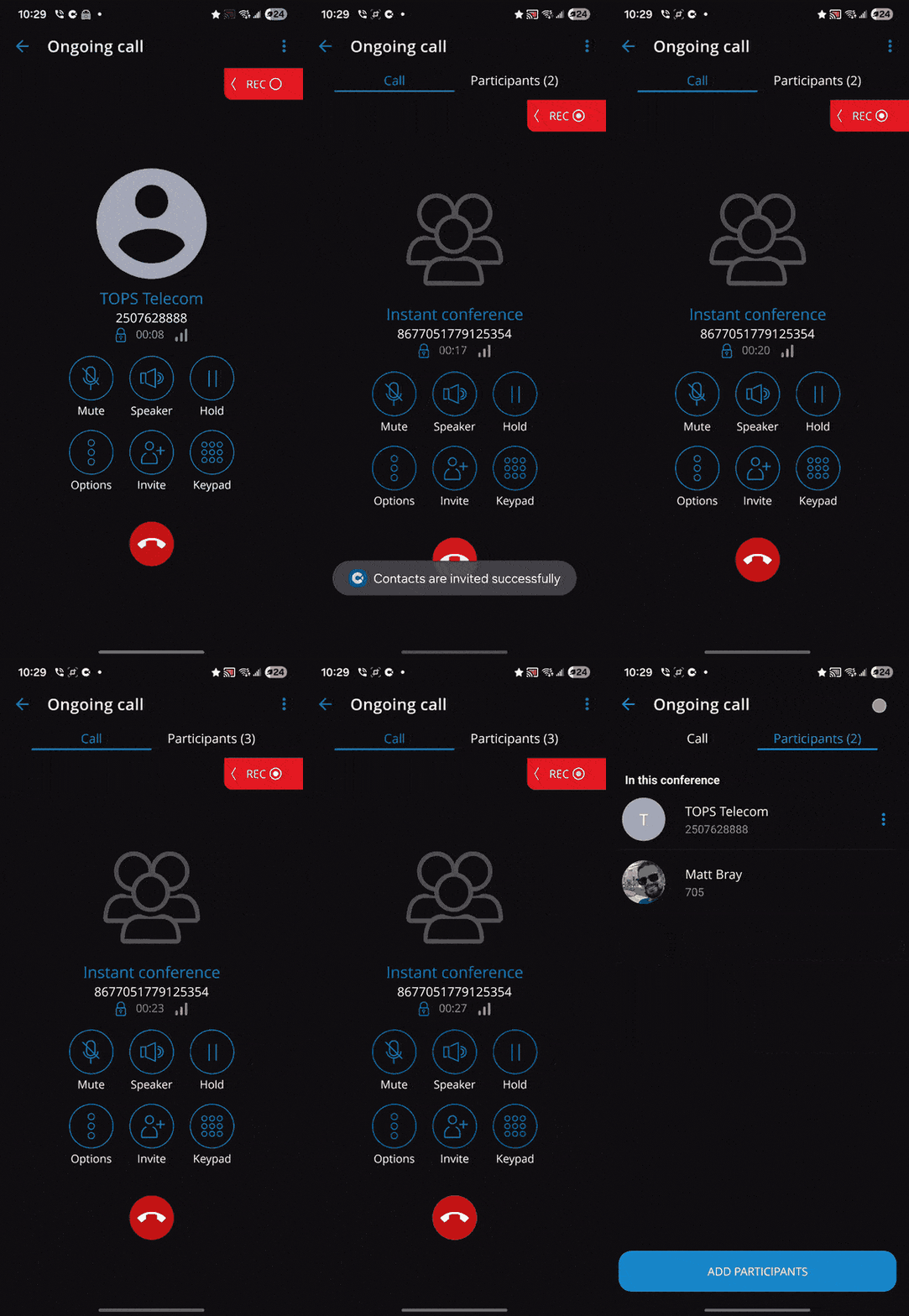
Add another person to an active call:
- While on an active call, press Invite
- Choose a contact or enter a phone number - the invitee will receive a call, when answered they join the conference
Remove a person from an active call:
- While in an active Ad-hoc conference, tap on the Participants tab
- Tap on the ⋮ beside a participant, then select Remove
Voicemail
Access your mailbox
To access your mailbox from the TOC mobile app:
- Navigate to the Phone tab by pressing the ⋮⋮⋮ symbol at the bottom left
- Tap on the Voicemail button on the top left
To access your mailbox via the app's phone function:
- In the Phone tab, dial *86
- Enter your PIN - found in your TOC welcome email
To access your mailbox from a different phone or account:
- Dial *84 + your extension number
- Enter your PIN
Record your Name for the Directory
- Call into your mailbox by following the steps above
- At the main menu, press 0 for mailbox options
- Press 3 to record your name
- At the tone, say only your first and last name 0 press # when finished
- Press 1 to accept, 2 to review (play again), or 3 to re-record
Record Your Personal Greetings
- Call into your mailbox by following the steps above
- At the main menu, press 0 for mailbox options
- Press 1 to record your Unavailable message
- When you are finished recording, press #
- Press 1 to accept, 2 to review, or 3 to re-record
Example greeting:
This is ______. I'm not available to take your call right now. If you require immediate assistance, please press 0, otherwise, leave a detailed message and I will return your call.
Change your PIN
- Access your mailbox by following the steps above
- At the main menu, press 0 for mailbox options
- Press 5 to change your password
- Enter your new PIN, followed by the # key
- Enter it again for confirmation, followed by the # key
Listen to Your Voicemail Greeting
To listen to your current voicemail greeting, call your mailbox directly:
- Dial *85 + your extension number
Chat
Chat is an instant messaging platform for all desktop, mobile, and web users. All chat messages are stored on the TOC server and synced across all your TOC applications. Chat is fully encrypted from end-to-end.
- Press the Chats button on the bottom right
- Press the + button to start a new conversation
- Select one contact for a direct message, or several contacts for a group chat
In a chat conversation you can send emojis, voice recordings, photos and files, and start a phone call with the other person.
[Screen shot of chat here]
SMS Messaging
SMS allows you to send and receive SMS txt messages and MMS picture messages to any cellphone number in Canada. All messages are sent and received through your direct phone number.
To send an SMS message:
- Press the ☰ icon in the top left
- Press SMS
- Press + to start chat creation
- Select a contact or press the icon of a phone over the numbers "1 2 3" to dial a number
E.g., +12505551234
[Screenshot of SMS screen here]
Unified Presence
Show your availability to all TOC desktop and mobile users in your company by setting your presence. You can set your presence from any TOC app. Custom rules can reroute your calls based on your presence status.
- Click on the horizontal lines in the top left corner
- Tap your presence status underneath your name
- elect any presence status, or set a custom status and how long it should apply before switching back to Available
[Screenshot of presence menu]
Default Presence Status Behaviour
Busy / Do not Disturb / In a Meeting - You receive all phone calls, chat messages, and other notifications - functionally the same as being Available.
Away / Vacation / At Lunch - Chat notifications on your cellphone are muted. Other notifications still come through.
Phone DND - Enable DND from the Dashboard to send all phone calls directly to your voicemail.
Custom Rules
You can create custom rules in the 'Online Self Care' configuration portal, or TOPS support can create them for you.
- Open the Online Self Care portal from the menu in your TOC app.
- Click on Services.
- Click on the edit icon beside Call Forwarding.
- Click on the App Presence tab.
- Check off each presence that will apply a custom call routing rule.
- Click on the + button beside each Destination / Timeout line to add a new destination.
- (Optional) enable Different Rules for Local Calls to exclude internal calls from the rule.
Common destinations:
- 999 - send the call direct to your voicemail
- <Your Extension Number> - ring your extension
Meetings
You can join TOC video meetings directly from your phone.
- To join a scheduled meeting, tap the meeting link in your email invitation or calendar reminder.
- To start an instant meeting with another user, open a chat with them and press the meeting icon.
During a meeting you can share your video, mute your microphone, and participate in the meeting chat.
[GIF of joining the meeting]
This document is a work-in-progress. More information coming soon!