Mobile ZAC Cellphone App
Installation
Download the Mobile ZAC app from the App Store or Google Play, or click the link below:
iPhone
Android
 Zultys, Inc
Usage
Logging In
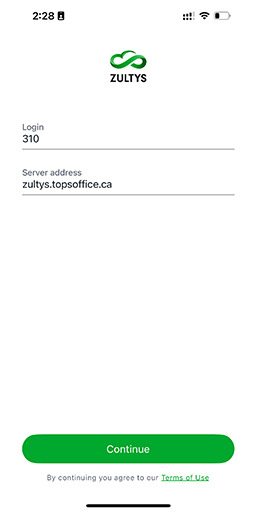
- Open Mobile ZAC, and you will be prompted with a login screen (fig. 1).
- Enter your login name (usually your extension).
- Enter the server address / hostname (usually something like COMPANY.cloud.topsoffice.ca).
- Press CONTINUE:
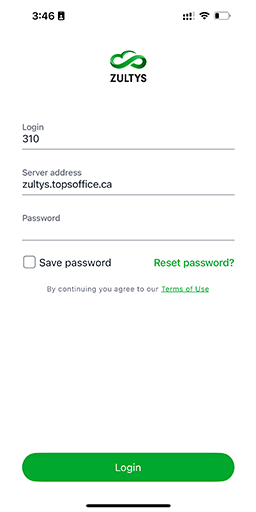
- The password field will now appear.
- Enter your password (your password was provided during installation, or you can contact our office to have it reset).
- Press LOGIN
- In some cases, you will be prompted to enter a Two-factor Authentication code that is sent to your email.
Logging Out
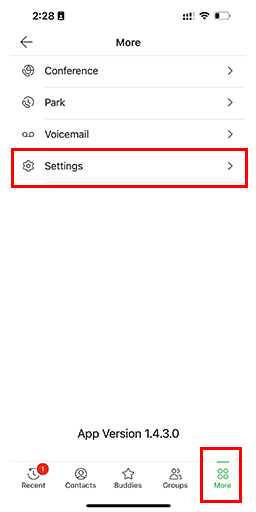
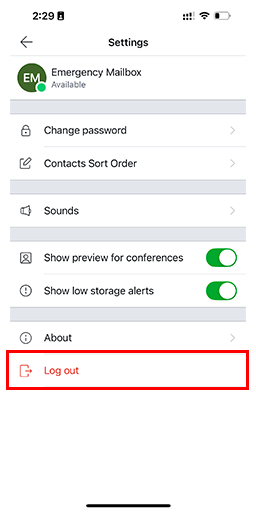
- Press the More button.
- Go to Settings.
- Press Log Out.
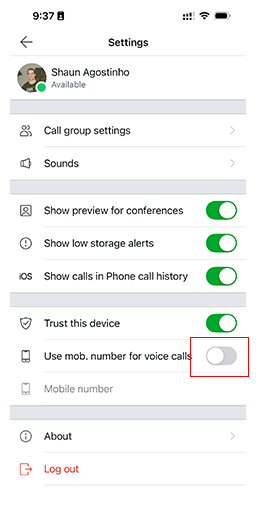
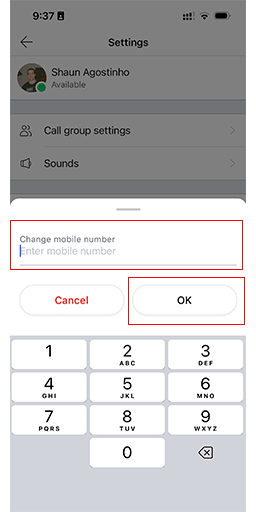
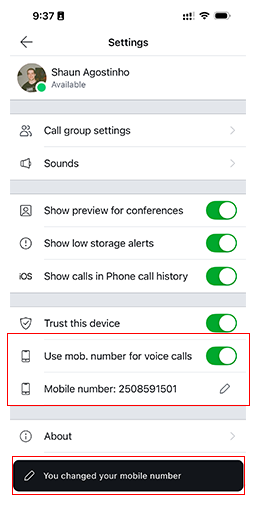
Use Mob. Number for Voice Calls
If you experience poor audio quality or dropped calls, it is likely due to WiFi or cellular signal degradation, or 'not enough bars'. Enable the setting Use Mob. Number for Voice Calls to resolve this.
Placing a call when this setting is enabled is a two-step process:
- You initiate an outbound call inside the app.
- The system calls your mobile number and you must answer it.
Once you answer the call, the system places the outbound call and connects you. Your mobile number is NOT visible to the caller.
Receiving a call when this setting is enabled follows the same two-step process:
- You press the answer button when your phone is ringing.
- Wait a couple seconds and press the answer button again when your mobile number rings.
You can still Hold/Transfer/Park the call by switching back to the app screen.
Call Control
Placing a Call
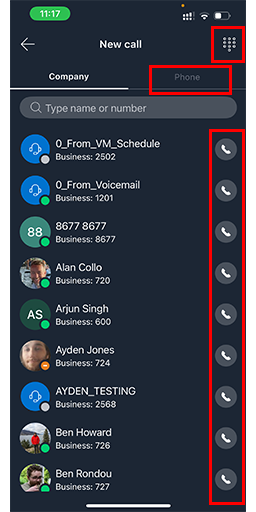
- Press Dial or the icon with the 3x3 dots.
- Dial the number.
- Press the green send/call button to place your call.
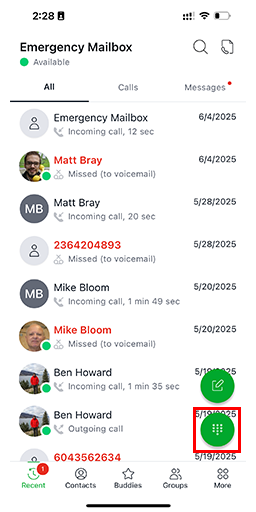
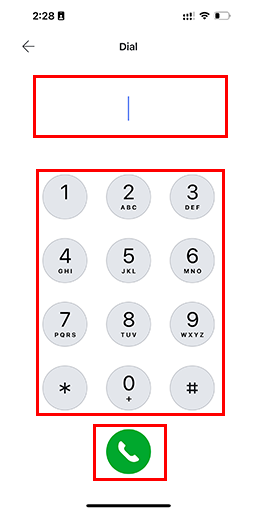
Answering a Call
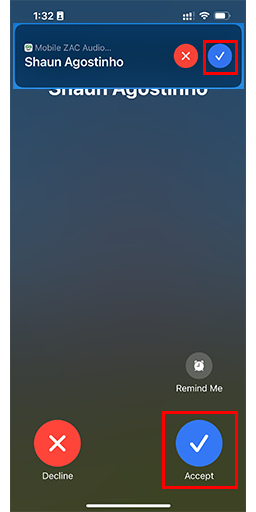
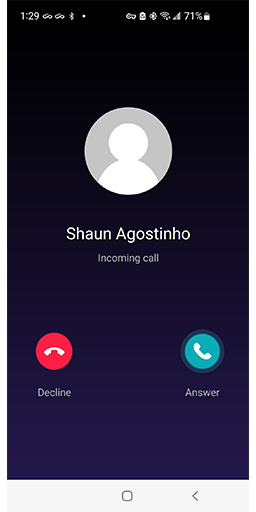
Press the blue answer button or click the button outlined by the red box.
Ending a Call
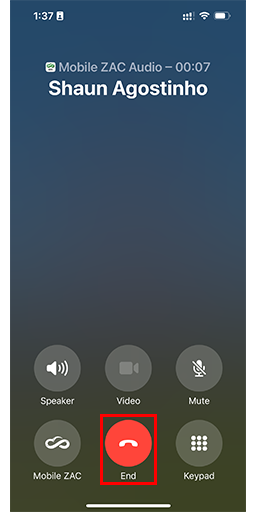
Click the red icon outlined by a red box to end an active call.
Blind Transfer
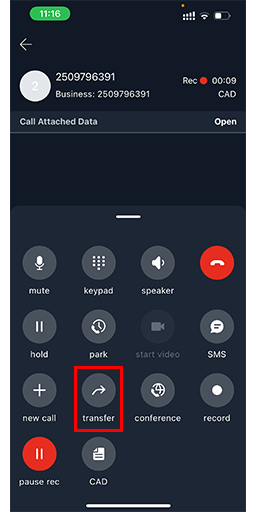
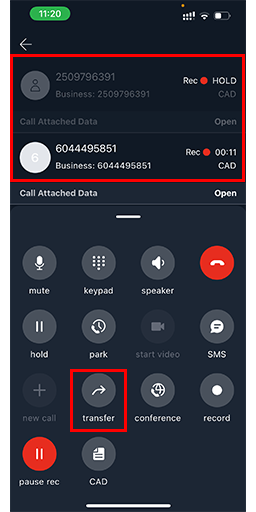
- Press transfer when on an active call.
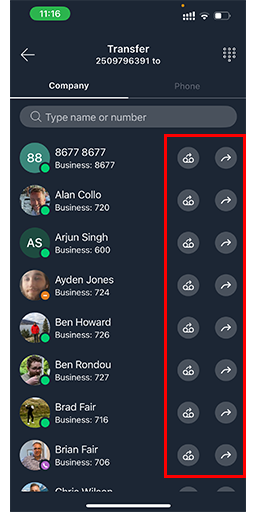
- It will give you an option to select internal extensions, an external number, dial the number manually, or select a contact from your local device.
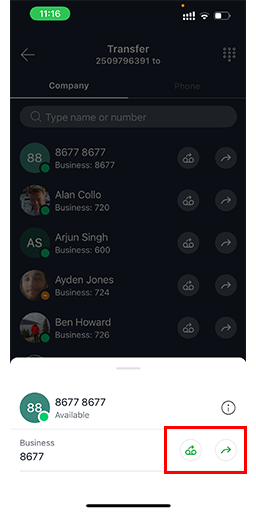
- Once selected, if the contact or extension has multiple reachable numbers, it will give you the option to select one.
- After selecting, it will blindly transfer the call.
Attended Transfer
- Press the Add Call icon while on an active call.
- Select who you would like to add (this will create a second call).
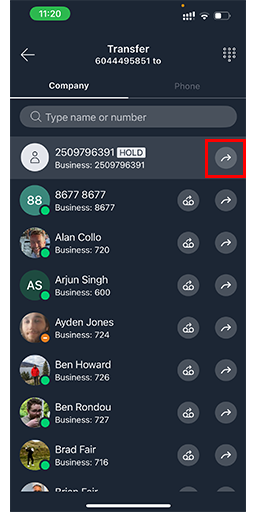
- Once finished talking to the person, press Transfer.
- Select the other active call to complete the transfer.

Transfer to Voicemail
- Press transfer while on an active call.
- Find the user and press the Transfer to Voicemail icon beside their name.
Hold
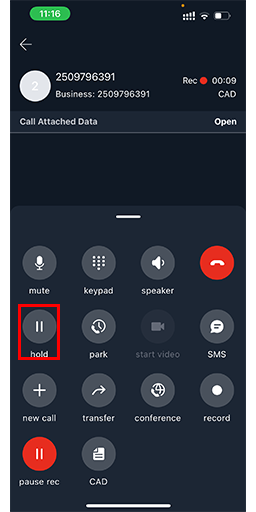
Press the hold button outlined in red to toggle holding the call.
(it will turn green when activated)
Parking Calls
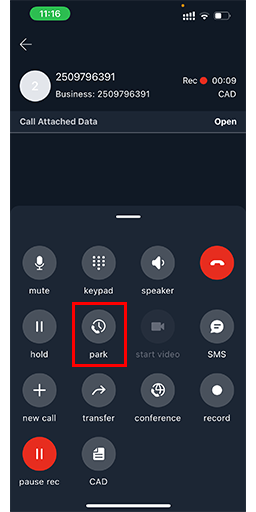
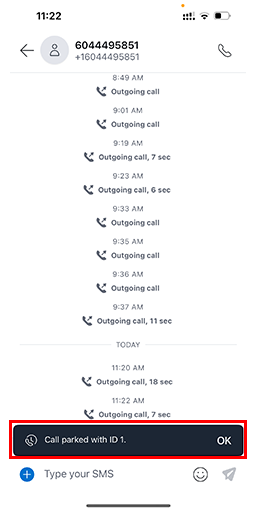
Press the park button while on an active call to park it.
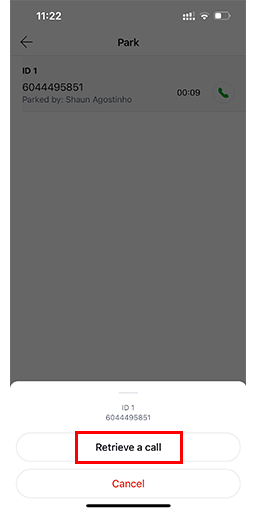
Picking Up Parked Calls
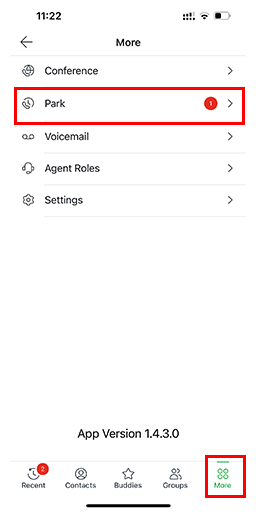
- Press the More button.
- Select Park
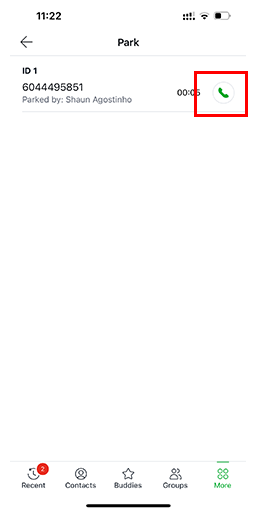
- View current parked calls or press the handset icon to pick the call up.
Conference
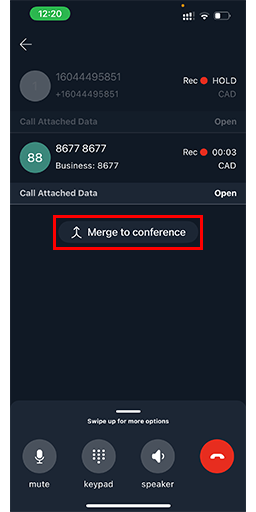
- When on a call, press the New Call icon to make a second call.
- When the second call is answered, press Merge to conference
- This will create a conference with all your active calls
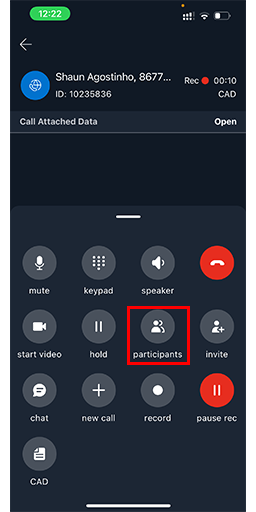
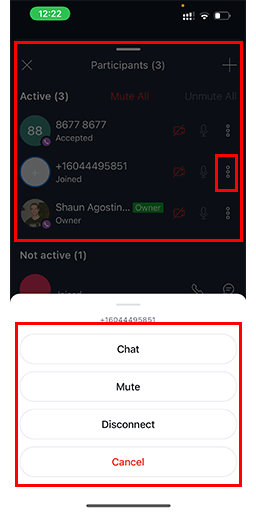
- You may edit the participants of your conference
when the advanced call features tab is open
- You may edit the participants of your conference
Instant Conference
Most systems have 4 instant conference extensions: 198, 197, 196, 195.
- Call one of these extensions.
- Instruct any other internal users to do the same.
- All participants will be in a voice conference together.
Messaging/SMS/MMS
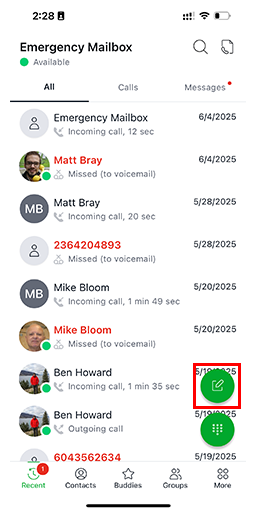
- Press the new message button (pencil icon)
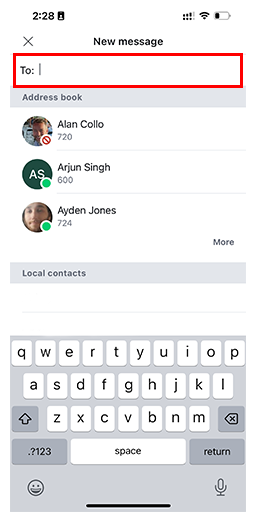
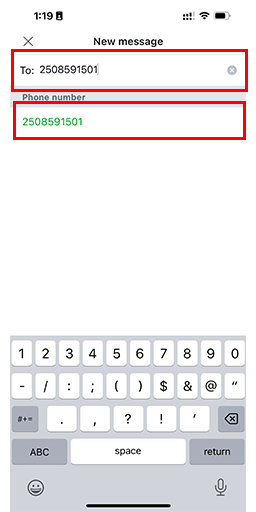
- Enter contact name or phone number
- Tap the contact name or phone number
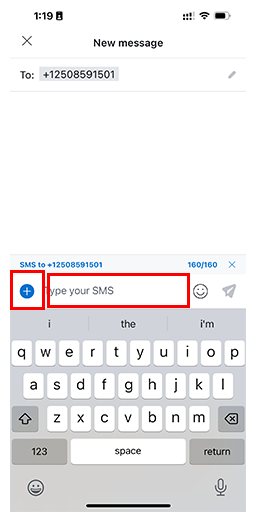
- It will open a chat dialogue.
- You may press the + icon to upload a photo/video, or simply type your message in the chat box.
Voicemail
Accessing Voicemail
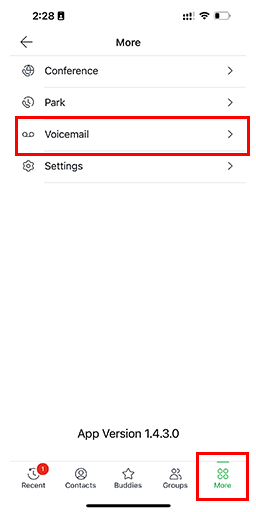
- Press More
- Press Voicemail
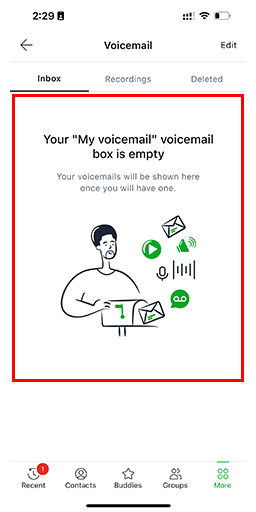
- If you have messages they will be displayed.
- You may also select a different voicemail or change greetings by pressing Edit in the top right.

Greetings
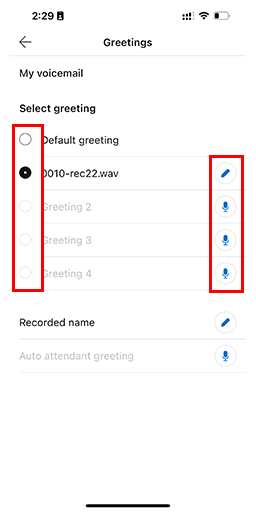
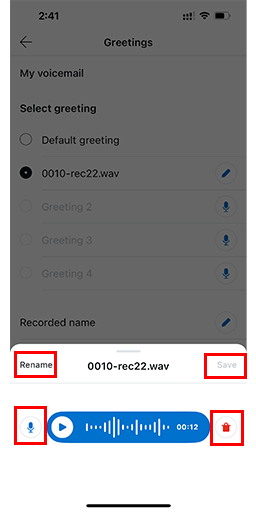
- From the greetings menu for your voicemail / group voicemail, you can:
- Select the active greeting on the left
- Edit an existing greeting
- Record a new one in an available slot
Presence & Call Groups
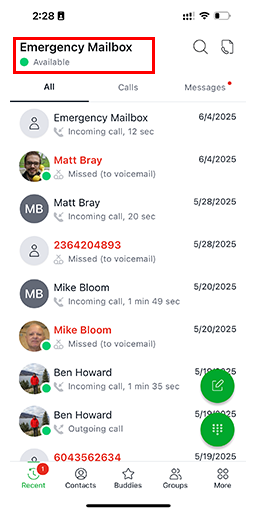
- Select your name at the top where it displays your presence.
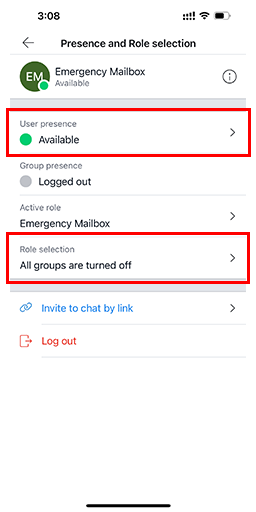
- You will have multiple options
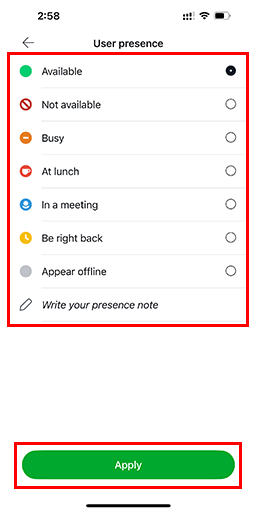
- User Presence : Your status - also controls call handling rules
- Group Presence : Used for Advanced Call Groups to control availability
- Active Role : May change outbound caller ID in some cases but normally not used
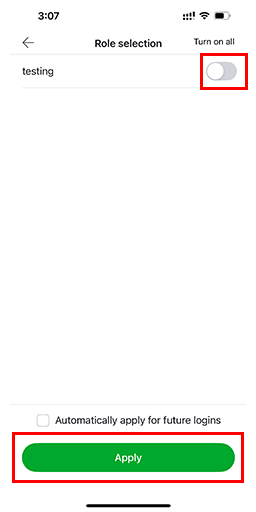
- Role Selection : Used to log in/out of certain call groups (ACD groups)