
Yealink W70B and W56H DECT Phone Quick Start Guide
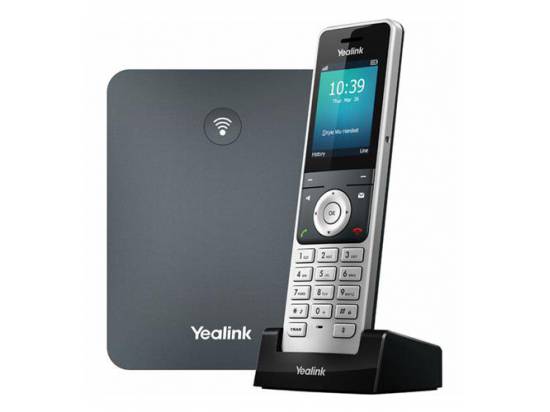
This article provides a Quick Start Guide on How to set up Yealink W70B and W56H DECT Phone
What’s in the box?
Yealink W70B and W56H DECT Phone
W70B Base Parts
A. 1 Base Station
C. 1 Power Adapter
B. 1 Base Stand
D. 1 Ethernet Cable

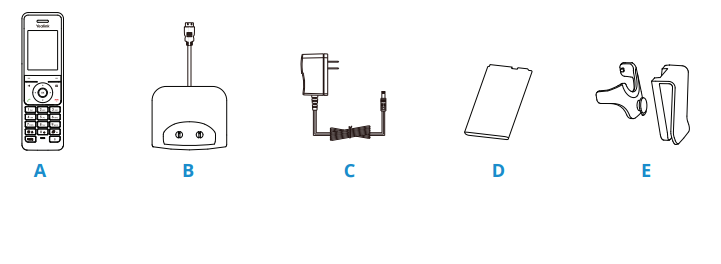
W56H Handset Parts
A. 1 Handset
C. 1 Power Adapter
B. 1 USB Charge Cradle
D. 1 Rechargeable Battery
E. 1 Belt Clip
Guided Setup
Connect Cables
Follow the diagram to install your phones. Once plugged in, the phone will automatically download its configuration and start to work after a few minutes.
Connecting the Cordless Base:
- Open the box and remove the Cordless Base, Power Adapter, and Ethernet cable.
- Connect one end of the Ethernet cable to the Internet port on the rear of the Base Station.
- Connect the other end of the Ethernet cable to any free port on your existing router or anywhere on your existing data network.
- Connect the Base Station Power Adapter to the connector on the Base Station, and then plug the Power Adapter into a power outlet.


Setting up the Cordless Handsets:
- Open the box and remove the Handset, Power Adapter, Batteries, Belt Clip and Charging Cradle.
- On the Handset, open the battery cover and insert the battery correctly, then close the battery cover.
- Connect the Charging Cradle Power Adapter to a power outlet.
- Connect the optional Belt Clip to the Handset if desired.
- Place the Handset into the Charging Cradle.

Note: for optimal battery performance, charge the phone for 6 hours before using. Once the phone has been plugged in and operational, the voicemail box is functional with a default greeting.

Features


Commonly Used Features
Placing Outgoing Calls
When the phone is not in use:
- Pick the Handset up from the Charging Cradle.
- Dial an extension number or telephone number.
- Press the green Call button.
When you are already on a call:
- Press the Options softkey and use the down arrow to select Hold and press OK. This will place the first call on hold and allow you to place a second call.
- Press the Line softkey.
- Press the Dial softkey.
- Dial an extension number or telephone number and press the Green call button.
- To resume the original call, end your second call, and press the Resume softkey
Answering an Incoming Call
- On a Handset: Pick up the Handset from the Base Station or press the Accept softkey.
- On a Headset: Pick up the Handset from the Base Station or press the Accept softkey.
- On Speakerphone: Pick up the Handset from the Base Station and press the Speaker button.
Ignoring an Incoming Call
Press the Silence softkey to send the caller to voicemail.
Ending a Call
Press the red End Call button.
Hold
Placing a Call On Hold:
- While on a call, press the Options softkey.
- Use the down arrow to highlight Hold and press the OK softkey. The call is now on hold.
Retrieving Calls On Hold:
Press the Resume softkey.
Transferring Calls
Blind Transfers:
- While on a call, press the Options softkey.
- Select Transfer and press the OK softkey.
- Dial an extension number or telephone number and press the Transfer Softkey.
- The call is automatically transferred.
Attended (Consultative or Warm ) Transfers:
- While on a call, press the Options softkey.
- Select Transfer and press the OK softkey.
- Dial an extension number or telephone number and press the Green Call button.
- When the party answers, announce the call.
- Press the Transfer softkey.
- The call is automatically transferred.
Mute
- While on a call, press the Mute button on the Handset.
- To unmute the call, press the Mute button again.
Voicemail
- Press and hold the 1 key on the Handset keypad or dial your phone’s extension or phone number.
- Enter your PIN when prompted, followed by #.
Volume Adjustment
In-Call Volume:
While on a call, press the left or right arrows on the keypad to raise or lower the volume.
Ringer Volume:
While the phone is not in use, press the left or right arrows on the keypad to raise or lower the ringer volume.
Call Waiting
When an inbound call rings in, you will hear a beep tone emitted by your phone if it is already in use.
To Answer the Second Call:
- Press the down arrow button to highlight the new call and press the Accept softkey, the original call goes onto Hold.
- To switch back to the call on Hold, press the Swap softkey.
To Reject the Second Call:
Press the down arrow button to highlight the new call and press the Reject softkey, the caller goes to your voicemail box
Speaker Phone
While the phone is not in use:
Press the Speakerphone button to activate the speakerphone and get dial tone for an outbound call.
While on a call on the Handset / Headset
Press the Speakerphone button to continue the current call on the speakerphone.
Forwarding Call
- Press the OK button on the keypad.
- Arrow down to Call Features and press the OK softkey.
- Highlight Call Forward and press the OK softkey twice.
- Choose the type of forwarding needed, then press the OK button.
- Use the left or right arrow to select Enabled.
- Arrow down to the Target section and enter the forwarding destination number or extension, then press the Save softkey.
Always — Forward all incoming calls.
Busy — Forward incoming calls when the phone is busy.
No Answer — Forward incoming calls when the phone is not answered.