
TOC - T33g User Guide
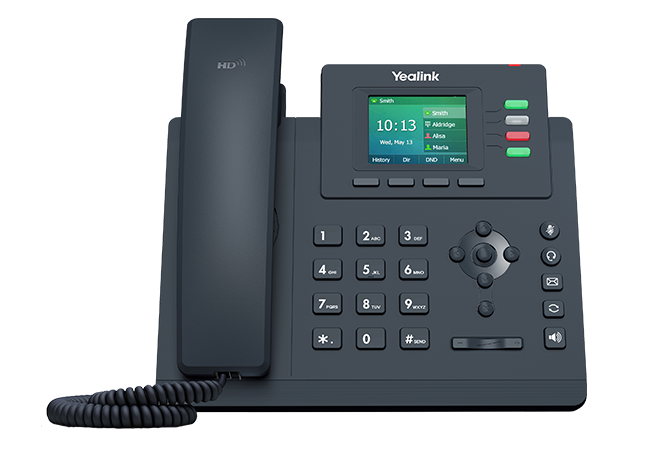
Making a Call
- With the handset down, enter the phone or extension number.
- Pick up the handset to initiate the call.
Making a Call on Speakerphone
With the handset down, enter the number then press Speakerphone or Send key.
Answering a Call
When your phone is ringing, pick up the handset to answer it.
Answering on Speakerphone
Press Speakerphone or the Answer softkey.
Forward | Silence | Reject
Press Forward to send the call to another user without answering it.
- Press Forward soft key.
- Dial destination extension or phone number.
- Press Send soft key.
Press Silence to mute the ringer.
Press Reject to send a personal call to voicemail or a group call to the next group member.
Ending a Call
Hang up the handset or press the X button.
Hold
To place a call on hold, press the Hold soft key.
To resume the call, press the Resume soft key.
If you have multiple calls at once, press up or down to select the desired call, and then press the Resume soft key.
Busy Lamp Field Keys
A Busy Lamp Field (BLF) is a feature key with someone’s name or extension on it.
A BLF key will light up solid red when that user is on the phone, and it will blink when their phone is ringing. You can press the key to call them, transfer an active call to them, or pick up a call ringing on their phone.
Transfer
Pressing a BLF key is the same as pressing the Transfer key and dialing an extension in the steps below.
Blind Transfer
Transfer a call immediately - if not answered, call will go into recipient’s voicemail.
- Press the Transfer soft key during a call (caller is placed on hold automatically).
- Enter the extension or phone number you want to transfer to.
- Hang up or press the B Transfer soft key to complete the blind transfer.
Attended Transfer
Transfer a call after consulting with the recipient for approval.
- Press the Transfer soft key during a call (caller is placed on hold automatically).
- Enter the extension or phone number you want to transfer to.
- Press # or wait 3 seconds to call the recipient.
- Consult with the recipient.
- To complete the attended transfer, hang up or press Transfer.
- To cancel the attended transfer, wait for the recipient to hang up, or press the X button, and then press Resume to retrieve the original call.
Voicemail Transfer
Transfer a call directly to the recipient’s voicemail.
- During an active call, press the ... Softkey to change pages.
- Press the VM Trnf softkey.
- Enter the destination extension and press OK.
Redial
Press Redial to enter the Placed Calls list, press up or down to select the desired entry, and then press Redial again, or press Send to place the call.
Press Redial twice when the phone is idle to call the last dialed number.
Pickup
Answer another ringing phone:
- Press the blinking BLF key.
*Your phone and the ringing phone must be in the same pickup group.
Park
To park a call, press the Park softkey and listen to the assigned park number
OR press an unlit Park xxx function key.
Park Retrieve
To retrieve a parked call, dial the assigned park number
OR press a lit Park xxx function key.
Intercom
Make a direct-to-speaker call to another user:
- Press the Intercom function key + an extension number or BLF key.
Paging
Broadcast a message to multiple phones and/or overhead speakers:
- Press Paging.
- Press the Release (x) button when finished to prevent crashing noise.
Ad-hoc Conference
- Press the Conference soft key during an active call (the call is placed on hold).
- Enter the extension or phone number of next party, and then press Send.
- Once the next party answers, press the Conference key again to add them to the call.
- Repeat to add additional parties.
Call Recording
Press the Record feature key during an active call.
- To pause the recording, press Pause or dial *5.
- To resume a paused recording, press Resume or dial *6.
- To cancel a recording, press the Record key again.
By default, the caller is not notified that recording has been started.
Operation Modes
Press the Mode feature key on the main/reception phone to disable business hours and make the company closed greeting play for incoming callers.
Call History
- Press the Up arrow or the Redial key when the phone is idle.
- Use the navigation keys to scroll through placed calls, missed calls, answered, calls, forwarded calls and all calls lists.
- Select an entry from the list and:
- Press the Send soft key to call the entry
- Press the Delete soft key to delete the entry from the list
- Press the Option soft key, and then:
- Select Detail to view the detailed information about the entry
- Select Add to Contacts to add the entry to the local phone directory
- Select Add to Blacklist to add the entry to the blacklist
- To remove an entry from the blacklist, press Menu > Directory > Blacklist
Voicemail
Access your Mailbox
To access your mailbox, follow these steps:
- Press the Voicemail key, or dial *86.
- Enter your PIN - found in your TOC welcome email.
To access your mailbox from another desktop phone:
- Dial *84 + your extension number.
- Enter your PIN number.
Record Your Name for the Directory
- Access your mailbox by following the steps above.
- At the main menu, press 0 for mailbox options.
- Press 3 to record your name.
- At the tone, say only your first and last name - press # when finished.
- Press 1 to accept, 2 to review, or 3 to re-record.
Record Your Personal Greetings
- Access your mailbox by following the steps above.
- At the main menu, press 0 for mailbox options.
- Press 1 to record your Unavailable message.
- When you are finished recording, press #.
- Press 1 to accept, 2 to review, or 3 to re-record.
Example greeting:
This is _________. I'm not available to take your call right now. If you require immediate assistance, please press 0, otherwise, leave a detailed message and I will return your call.
Change Your PIN
- Access your mailbox by following the steps above.
- At the main menu, press 0 for mailbox options.
- Press 5 to change your password.
- Enter your new PIN, followed by # key.
- Enter it again for confirmation, followed by # key.
Listen to Your Voicemail Greeting
Listen to your current voicemail greeting by calling your mailbox directly:
- Dial *85 + your extension number.
Company Greetings
For security reasons, instructions to change company greetings are not provided on our website. We will provide instructions to authorized users upon request.