TOC - Online Self Care Portal
The Online Self Care portal (OSC) allows you to view your call recordings and change many different settings on your extension including call forwarding and button programming.
How to Access the Online Self Care Portal
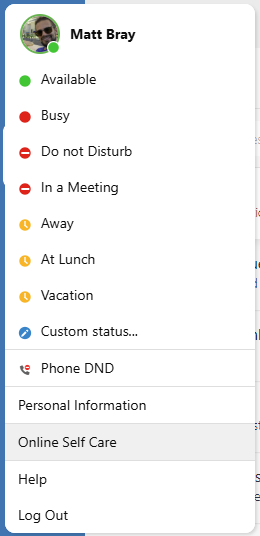
While logged into TOPS Office Communicator Next (TOC), click on your personal user icon at the top left of the window, and select Online Self Care from the menu:
Reset Your Password or PIN
- Access the Online Self Care portal
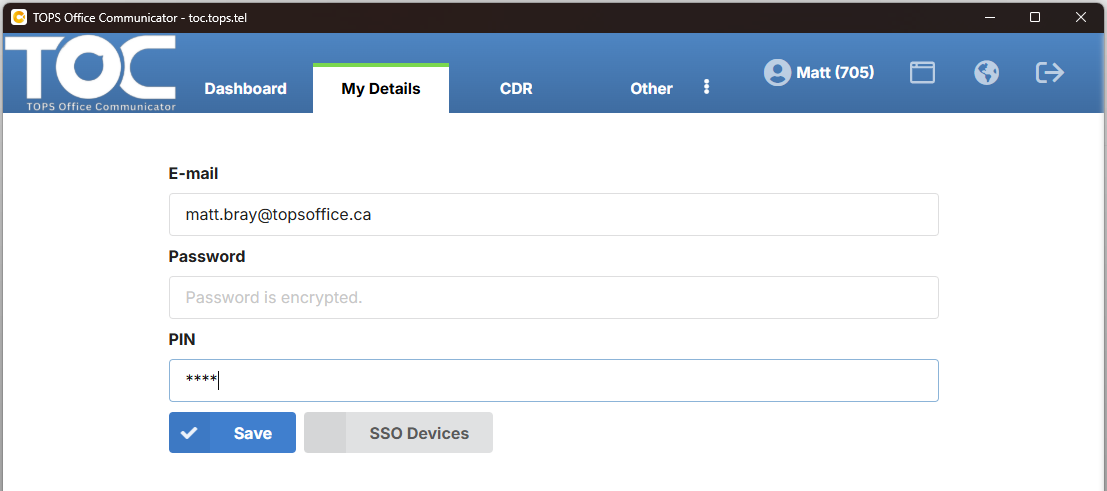
- Click on My Details
- Enter a new password or voicemail PIN
View Call Recordings
- Access the Online Self Care portal
- Click on CDR - your own calls are listed here and you can filter by date range and calling/called numbers:
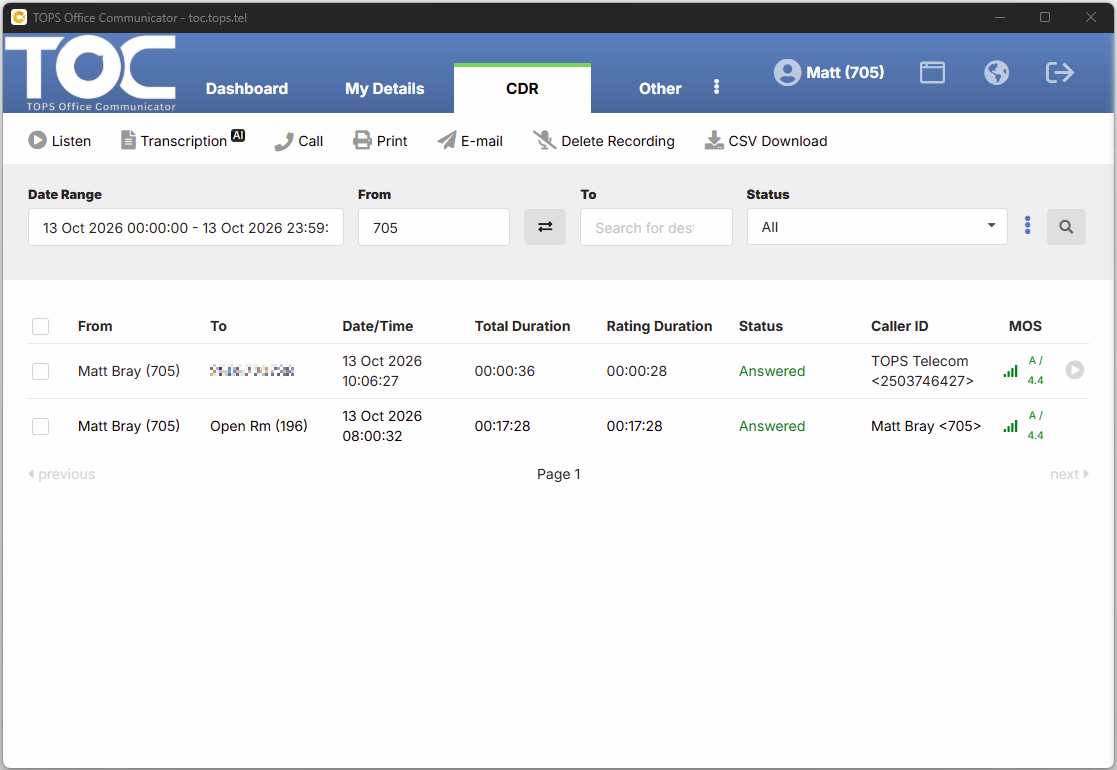
If you see a play button on the right side of a CDR entry, that means the call was recorded and you can listen to it by pressing the button:
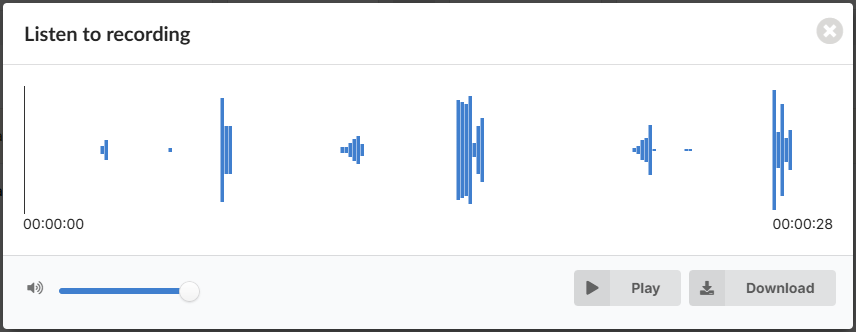
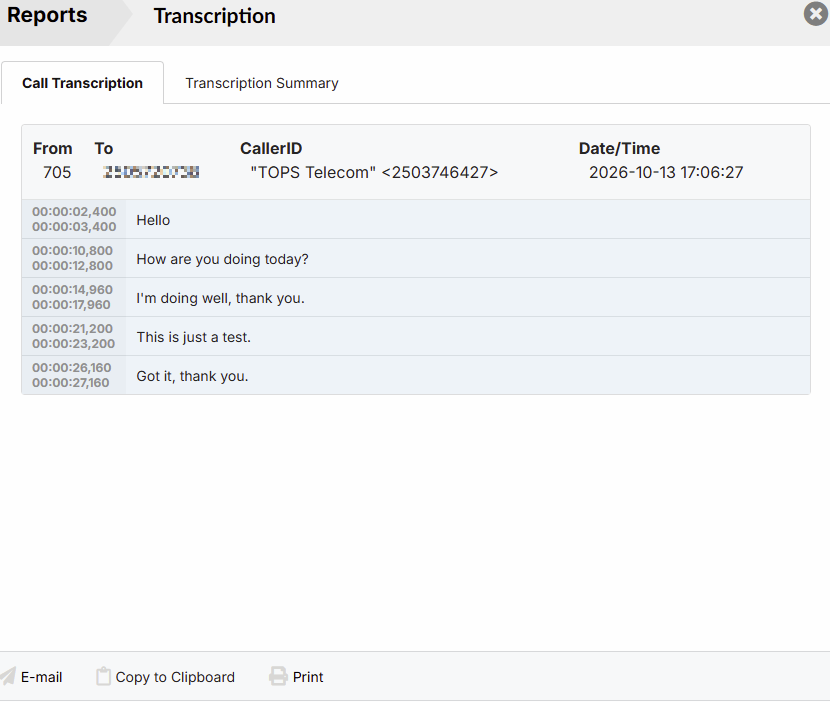
To view a transcription of any recorded call, click the checkmark beside the call and press the Transcription icon above:
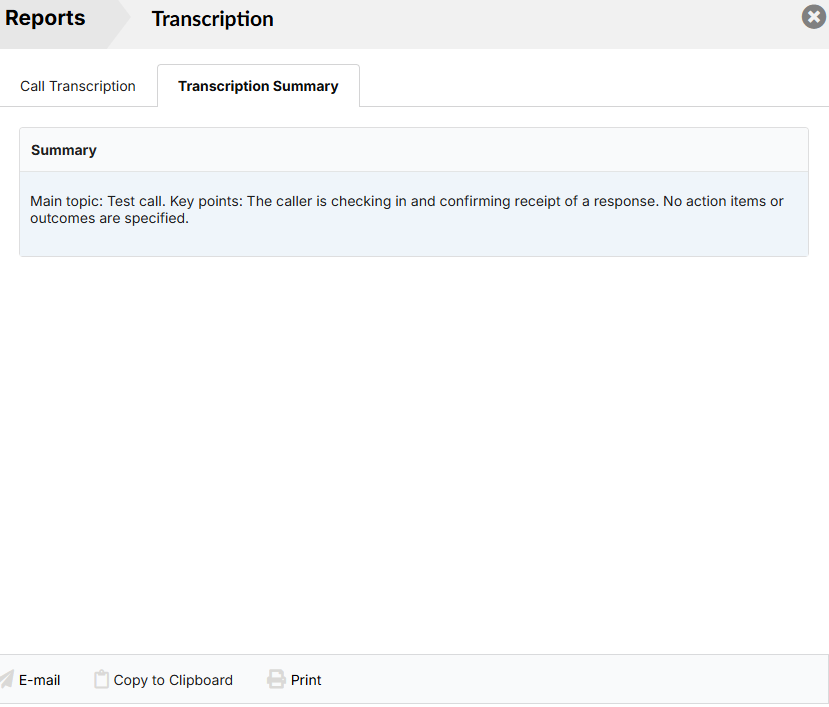
To view the call summary, click on the Transcription Summary tab inside the transcription window:
Call Forwarding Rules
You can enable call forwarding to send all your personal calls to other destinations including other users, your voicemail, a ring group, or an external phone number.
- Access the Online Self Care portal
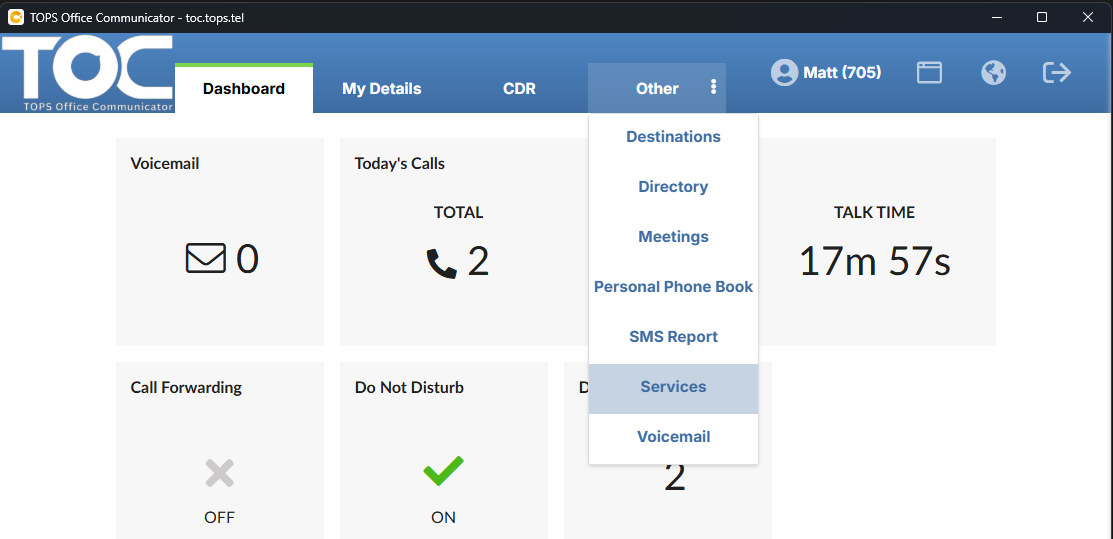
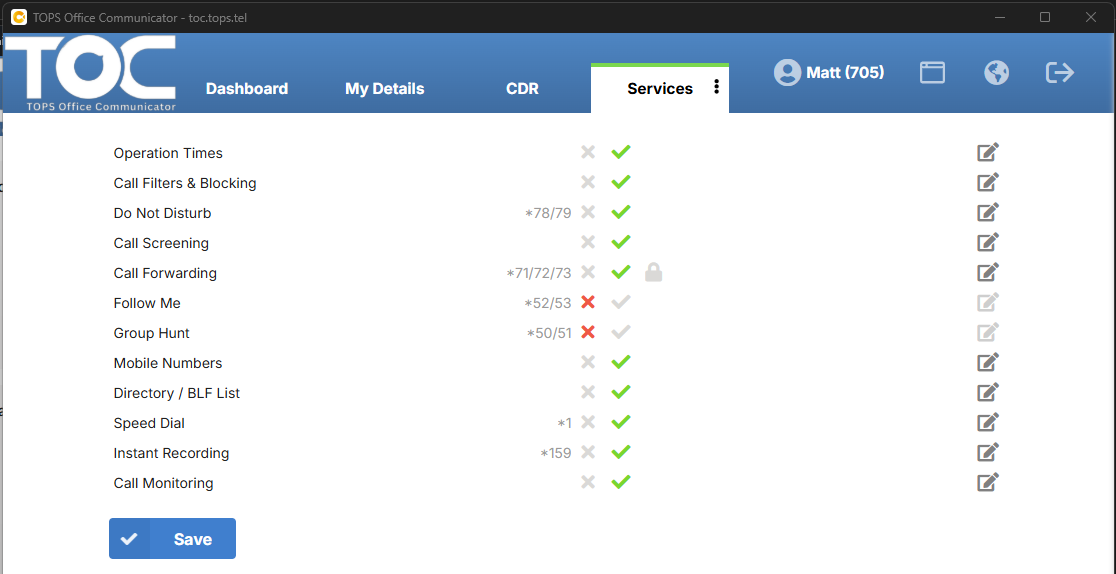
- Click on Other > Services
- Click on the edit icon beside Call Forwarding
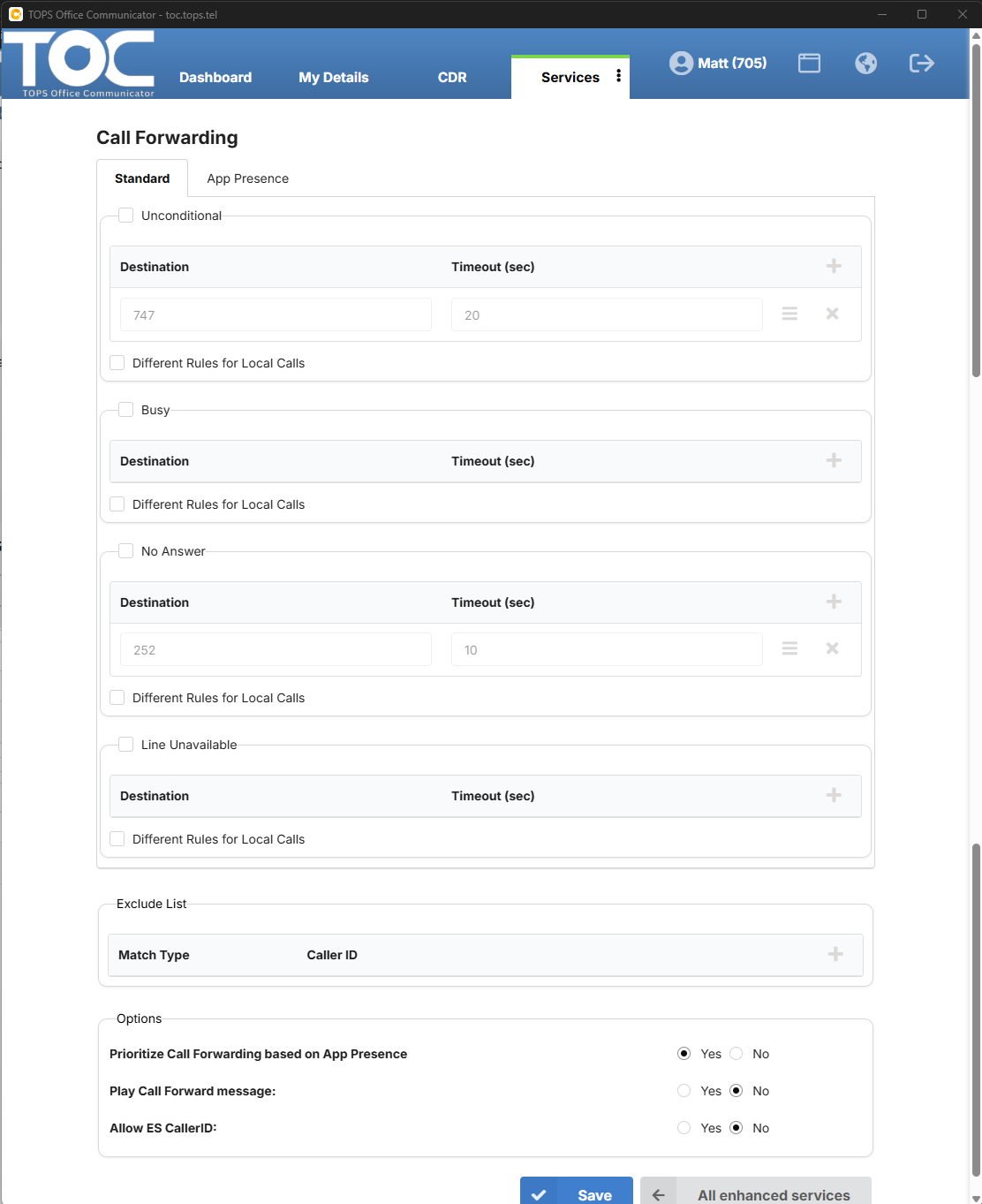
- Check off Unconditional / Busy / No Answer / Line Unavailable
- Unconditional forwards all calls immediately
- Busy forwards all calls if you are on the phone or press Reject on an incoming call
- No Answer forwards only if you do not answer in a set time
- Line Unavailable forwards only when you are logged out of all TOC apps and your desktop phone is unplugged
- Press the + button under each section you want to enable to add the forwarding destination
- (Optional) Enable different rules for local (extension-to-extension) calls
Call Forwarding by Presence
You can create rules that apply based on your presence status.
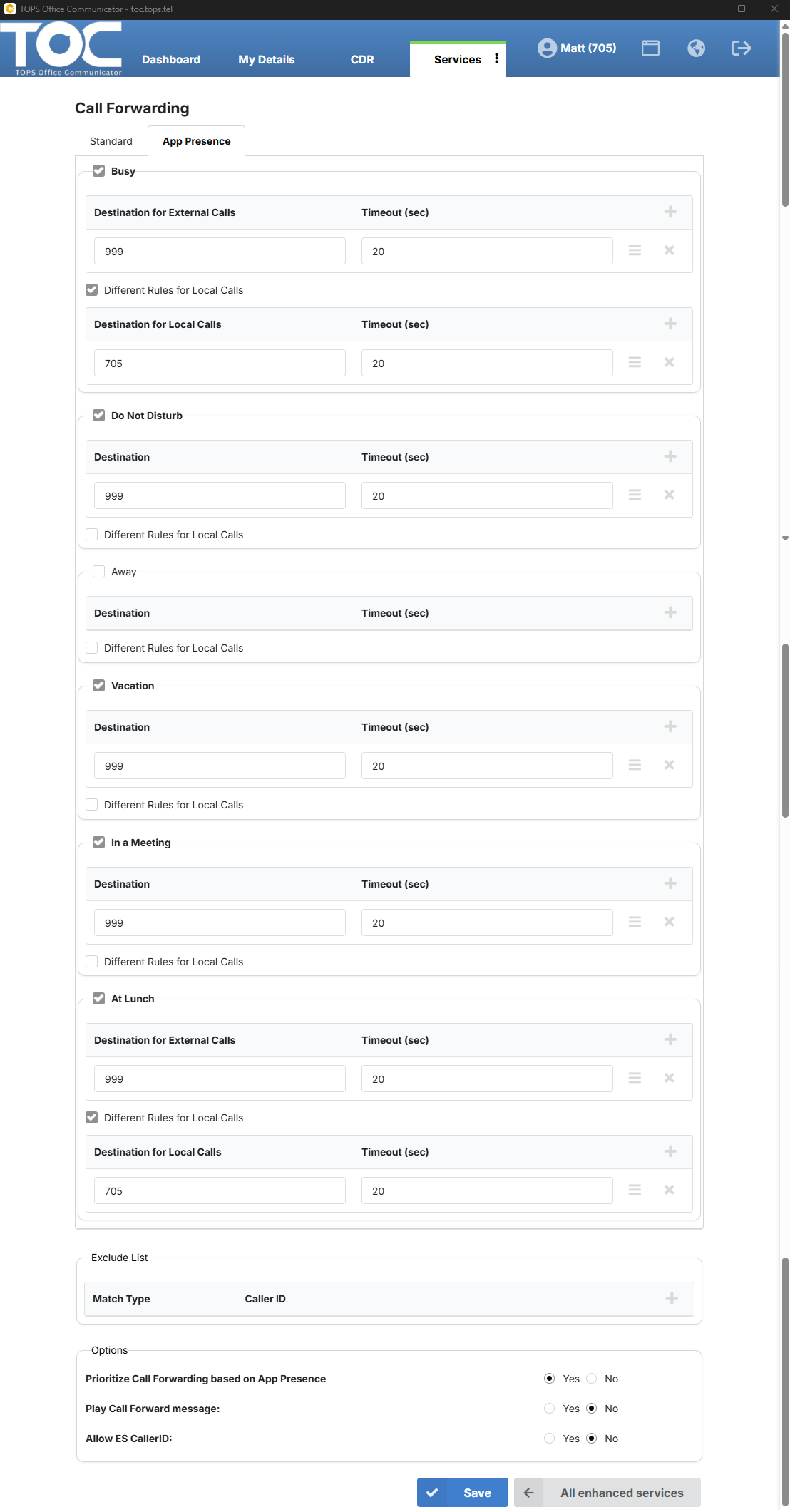
- Inside the Call Forwarding menu, click on the App Presence tab
- Check off each presence that will apply a custom call routing rule
- Click on the + button on each section you've checked off to add a new destination
- (Optional) enable Different Rules for Local Calls
Common destinations:
- 999 - send the call directly to your voicemail
- xxx - any extension number on the system
- xxx-xxx-xxxx - any external phone number
Customize the Buttons on Your Phone
You can customize the programmable buttons on your desktop phone.
- Access the Online Self Care portal
- Click on Other > Services
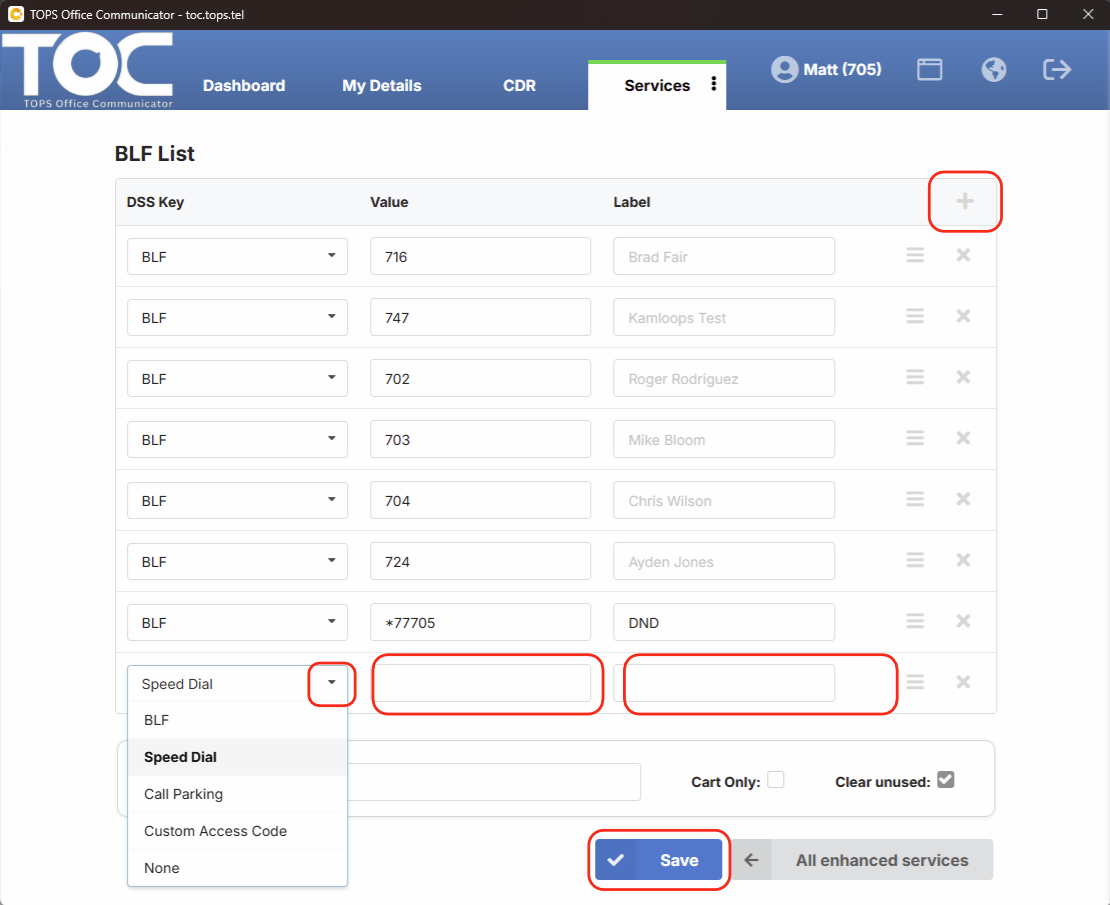
- Click on the edit icon beside Directory / BLF List
- Click on the + button to add a new custom button, or modify an existing one
When you add a new button, your options are:
- BLF (busy lamp field) - the value must be an extension or * code. It has the following functions:
- Status - it will light up solid red when that extension is on the phone or in DND and it will blink when their phone is ringing
- Call - press the key when your phone is idle to call that extension
- Transfer - press a BLF key during an active call to initiate a transfer to that extension
- Pickup - when that extension is ringing (blinking), you can press the key to pick up their call on your phone - note both extensions must be in the same pickup group
- Speed Dial - the value can be any internal or external number. It provides the same call and transfer functions as a BLF key, but does not provide status or pickup capabilities.
- Call Parking - requires the value to be a park extension / adds a park key to the phone
- Custom Access Code - usually a * code